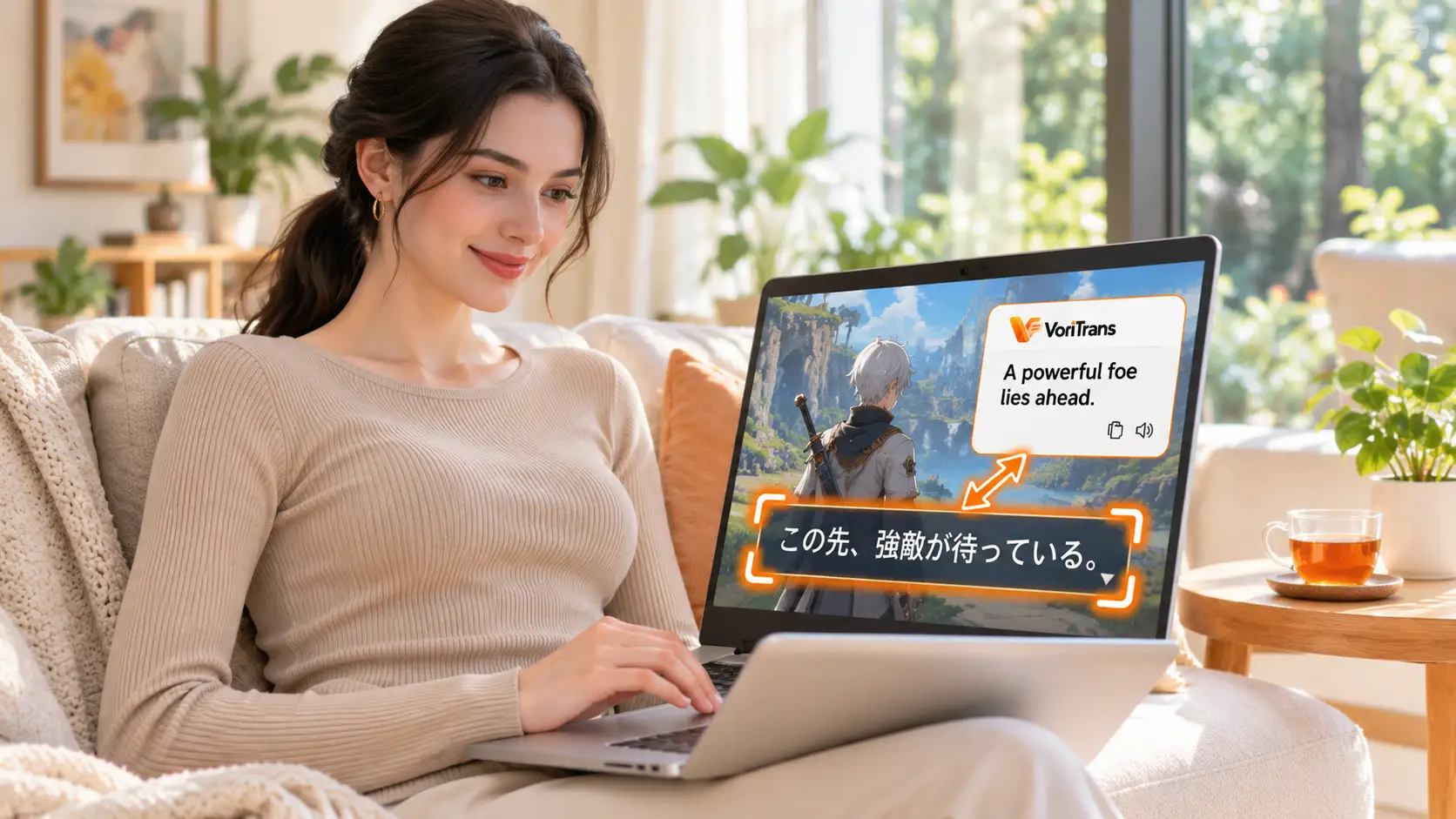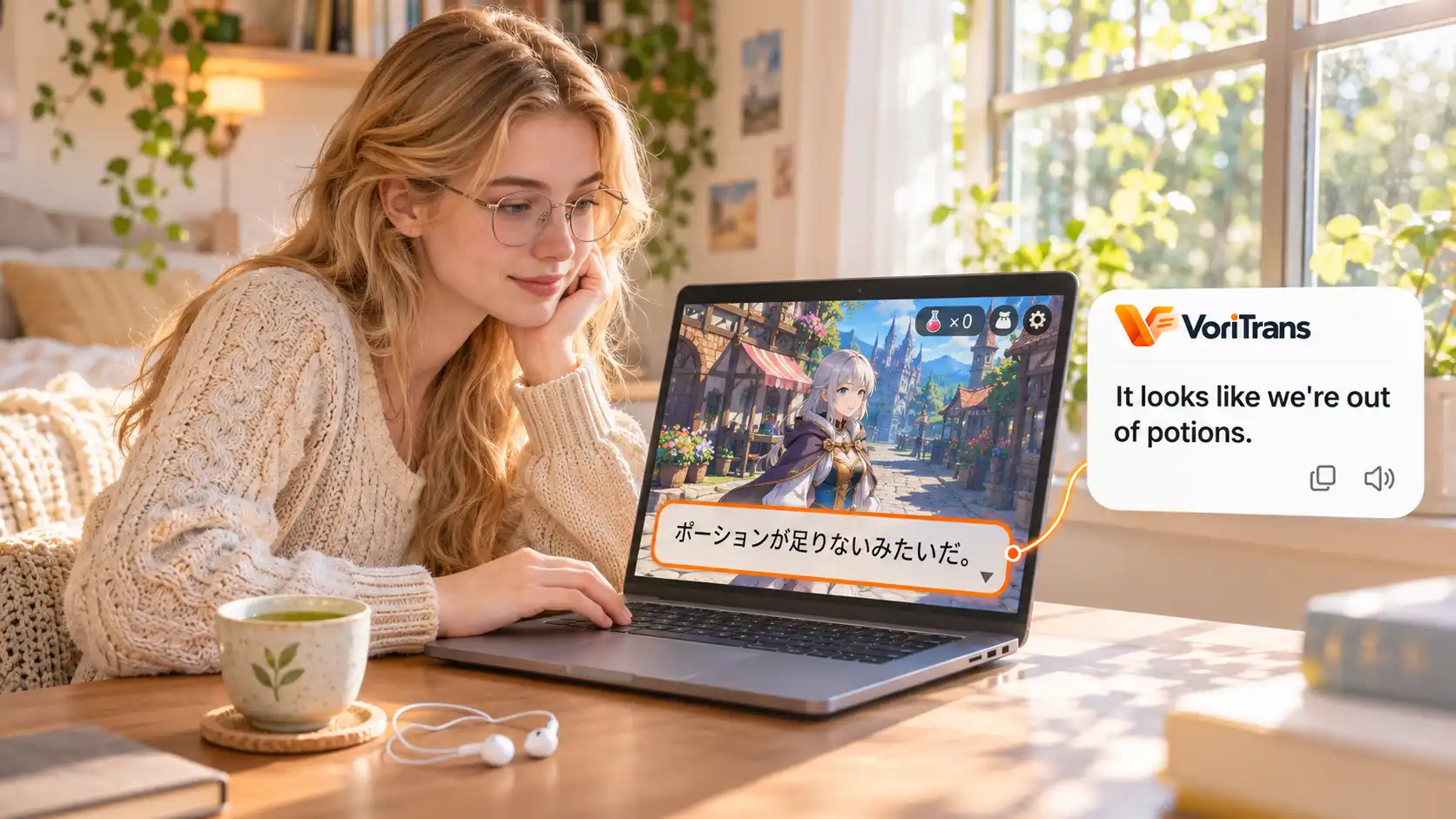
How to Translate Steam Games That Don't Support Your Language
Your Steam library has a well-reviewed Japanese game; you open the store page and scroll to the language list — your language isn't there. Or you install it only to find the developers localized the interface and menus, but the story text is still in the original language. This isn't a problem exclusive to players of any one country: Japanese games have shipped with Japanese and English only for years, indie games often support only the developer's own language, and players of any language can hit the wall of "I can't read the game's text." This guide explains what to do, in order: confirm official support first, and if it's missing, use screen translation to read what's on screen in real time.
Why will there always be Steam games you can't read?
Game localization is developer workload, not a platform feature. The Steam store supports dozens of interface languages, but which languages a game's content supports depends entirely on which language packs the developer built — Japanese RPGs and visual novels are mostly Japanese-first, indie games often ship in the developer's native language only, and many games don't even have consistent localization progress between interface and subtitles. If the developer didn't make your language, the store can't help you. What players can do comes down to two things: make sure you haven't overlooked official support, and when there is none, find a way to read the on-screen text without interrupting the game.
Step one is always: check official language support first
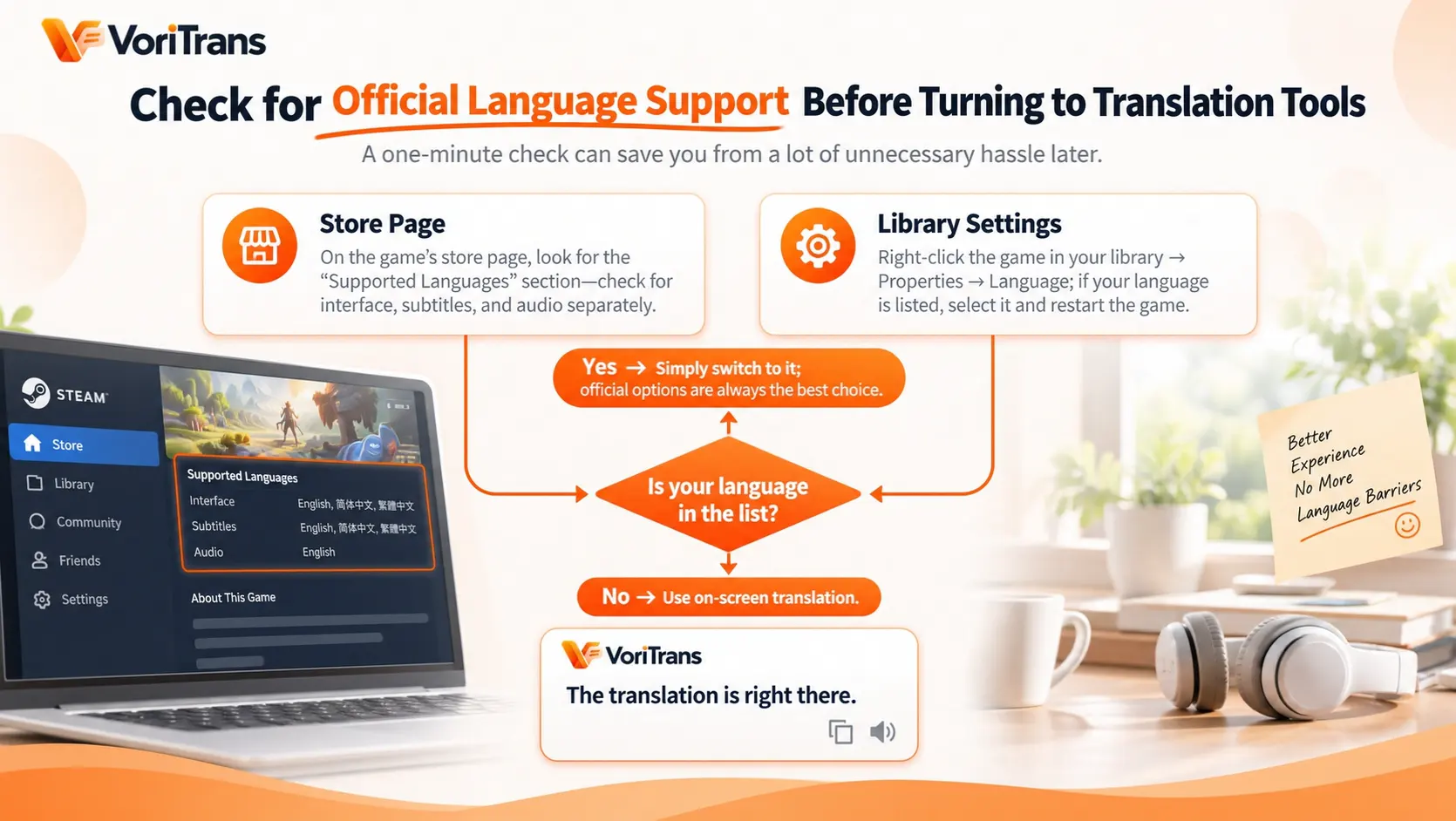
Many players don't know Steam has per-game language settings. Spend one minute checking and you can save yourself all the hassle that follows:
- Store page: scroll down the game's page to the "Supported languages" section. Interface, subtitles, and voice support are often listed separately — look carefully before drawing conclusions.
- In-library settings: right-click the game in your library → Properties → Language. If your language is on the list, switch and restart the game. That's the official solution, and it outranks every tool.
Only if neither place offers your language should you move to the next step — solving it with screen translation.
No official support for your language: get started with screen translation in four steps
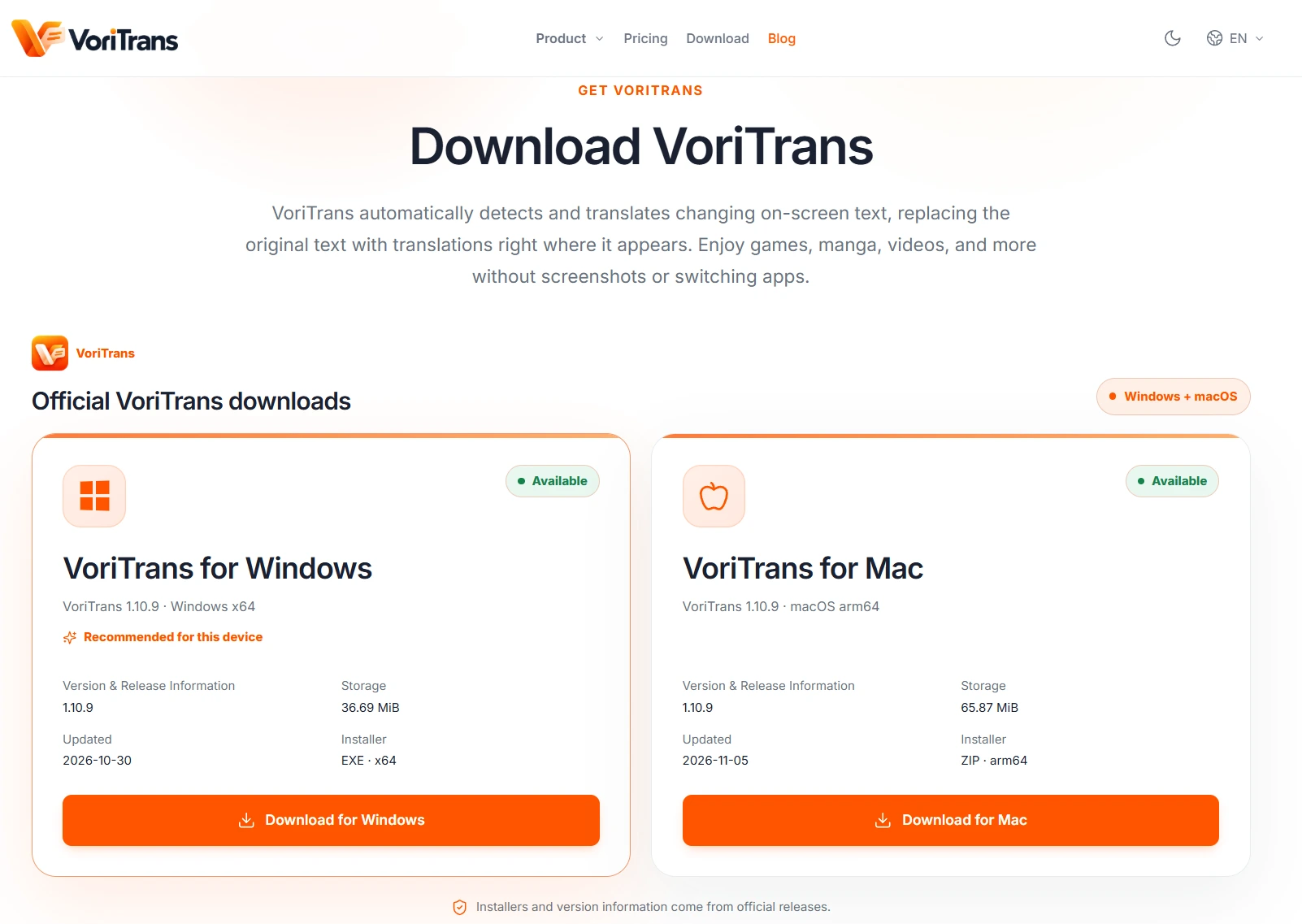
A screen translator reads the text displayed on your screen and puts the translation back in place, so the game itself doesn't need to change. Take VoriTrans as an example (get the client from the official download page):
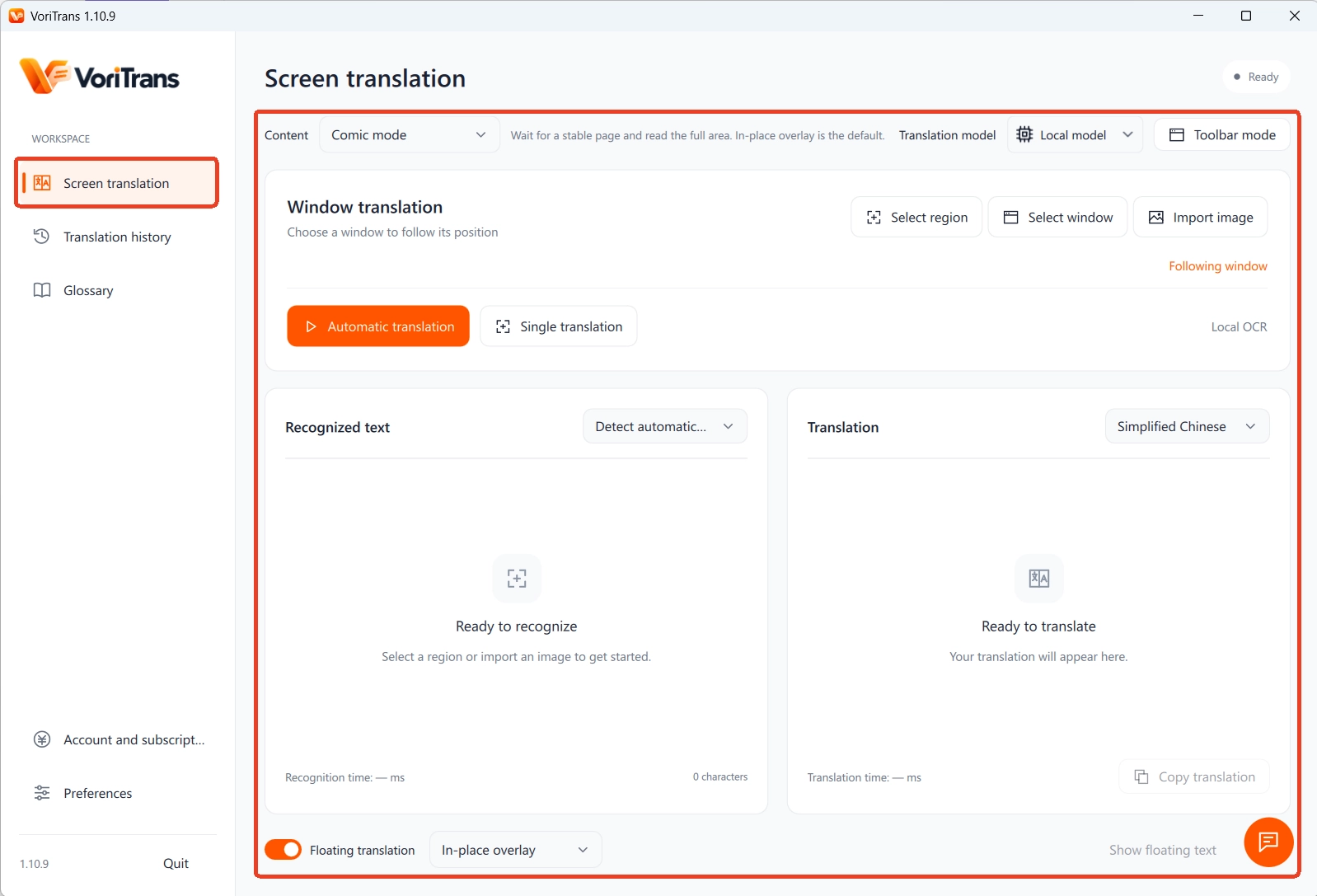
Step 1: Pick the right content type. Open the client and, on the "Screen Translation" page in the left sidebar, switch "Content Type" at the top to "Game Mode" so recognition is tuned for game interfaces.
Step 2: Select the game window. Click "Select Window" to select the game; the tool automatically tracks its position. If you only want to translate a text box or a menu, use "Select Area" to frame just that part.
Step 3: Choose the model and languages. Start with the "Local Model" for translation — it doesn't consume credits. Keep the source language on auto-detect, and pick whatever language you need from the 105 available — it doesn't matter what language the game is originally in; you'll be reading it in your own.
Step 4: Turn on auto translation. Flip on the "Auto Translate" switch at the bottom left, choose "In-place Overlay" as the "Translation Mode" at the bottom, and the translation is rendered directly over the text window. Advance the story to the next line and the translation refreshes automatically.
Three kinds of in-game text, each with its own framing approach
The text in a game interface isn't one thing, and separating your framing strategy by type makes a big difference in recognition quality:
- Dialogue and quest text: concentrated in text windows — frame the window, leaving the full area where text appears, and the translation follows the story automatically.
- Menus and item descriptions: small, densely packed text — the closer your frame is to the target area, the more accurate the result. Translate one inventory entry at a time rather than framing the whole screen.
- Options and pop-ups: button text flashes by in an instant; "In-place Overlay" puts the translation right on the button. For a pop-up you're unsure about, fire off a "Single Translation".
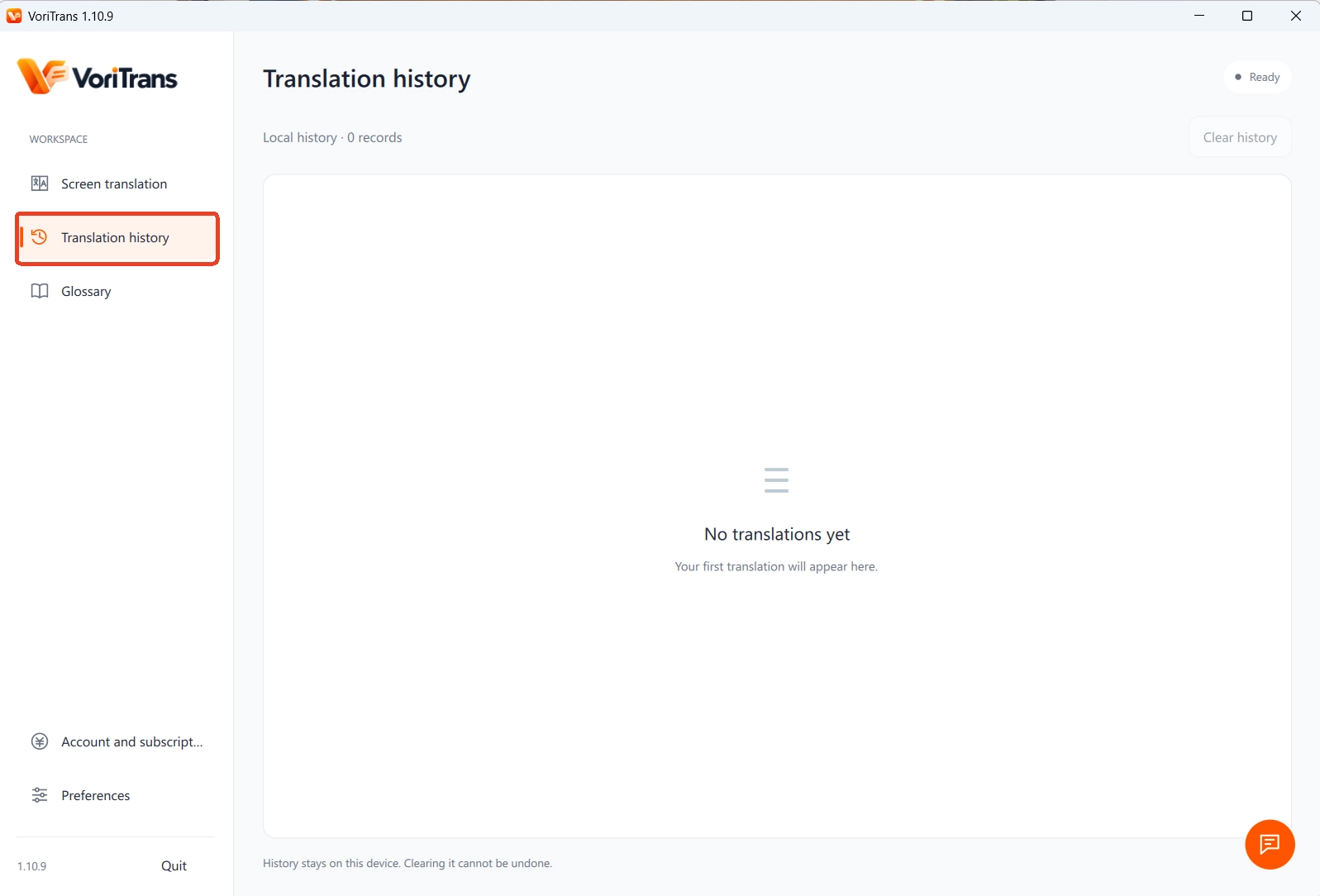
Everything you've translated stays in "Translation History" on your machine, so when you forget a quest requirement, just scroll back — no need to quit the game.
Consistent terminology in long-running games — and the limits
RPGs and visual novels easily run dozens of hours; if the protagonist's name or a proper noun comes out three different ways, the story becomes hard to follow. "Glossary" locks names, places, and system terms to one consistent translation, and "OCR Correction" permanently fixes words that keep getting misrecognized. Changes take effect automatically from the next translation, and the glossary supports import and export, so you can take it with you to a new machine. Know the limits too: it translates text already displayed on screen, so voiced dialogue without subtitles can't be translated; recognition may suffer in some fullscreen or special anti-cheat environments — running in windowed mode is usually more stable, and compatibility with any specific game follows the official documentation. Cost-wise, you don't have to decide anything up front: the local model consumes free credits — 1,000 per month for guests, 2,000 after registering — enough to get through the first few hours of a mid-size game. If your usage grows, compare the membership plans; the rules on the official pricing page are authoritative. For how screen translation works and its other use cases, the article What Is a Screen Translator covers it more systematically.
FAQ
Does Steam have a built-in translation feature?
No. Steam's language settings only switch between the language packs the developer has made; they don't translate the game content itself, and the language filter on store pages only affects what the store shows. When a game's content doesn't include your language, you need a third-party solution to fill the gap — screen translation is one option that doesn't interrupt the game.
Will I be punished by anti-cheat systems for using screen translation while playing?
A screen translator reads the text displayed on your screen; it doesn't modify game files or inject into the game process, which is completely different from how cheating tools work. That said, some anti-cheat environments can affect screen recognition. In fullscreen exclusive mode, switching to windowed mode is recommended, and compatibility with specific games is subject to the official documentation.
Can console games be translated this way?
This tool processes text displayed on a computer screen and is built for the Windows client. Console game output never passes through your computer screen, so it can't be used directly. Feeding your console's picture through a capture card onto the computer screen is theoretically possible, but both latency and image quality take a hit — if there's a PC version, play that.