Screen Translation for Work: Read Any Foreign-Language Interface
You take over a foreign-language admin system where the buttons are in German and the error dialogs in Dutch; or you install a productivity tool built in Japan, and the menus are half kanji and half kana you can only guess at. You try to copy the text out to translate it, only to find the interface text can't be selected; you try your browser's full-page translation, only to realize this isn't a web page at all. Language barriers at work are far more practical obstacles than in entertainment — what they block isn't the plot, it's your task progress.
Why Browser Translation Isn't Enough
Browser translation is most people's first instinct, but its limits are clearly drawn: it only handles web pages inside the browser window. A large share of foreign-language content in daily office work falls exactly outside that boundary:
- Desktop software: Menus, settings pages, and status bars in desktop apps never pass through a browser, so full-page translation simply doesn't apply.
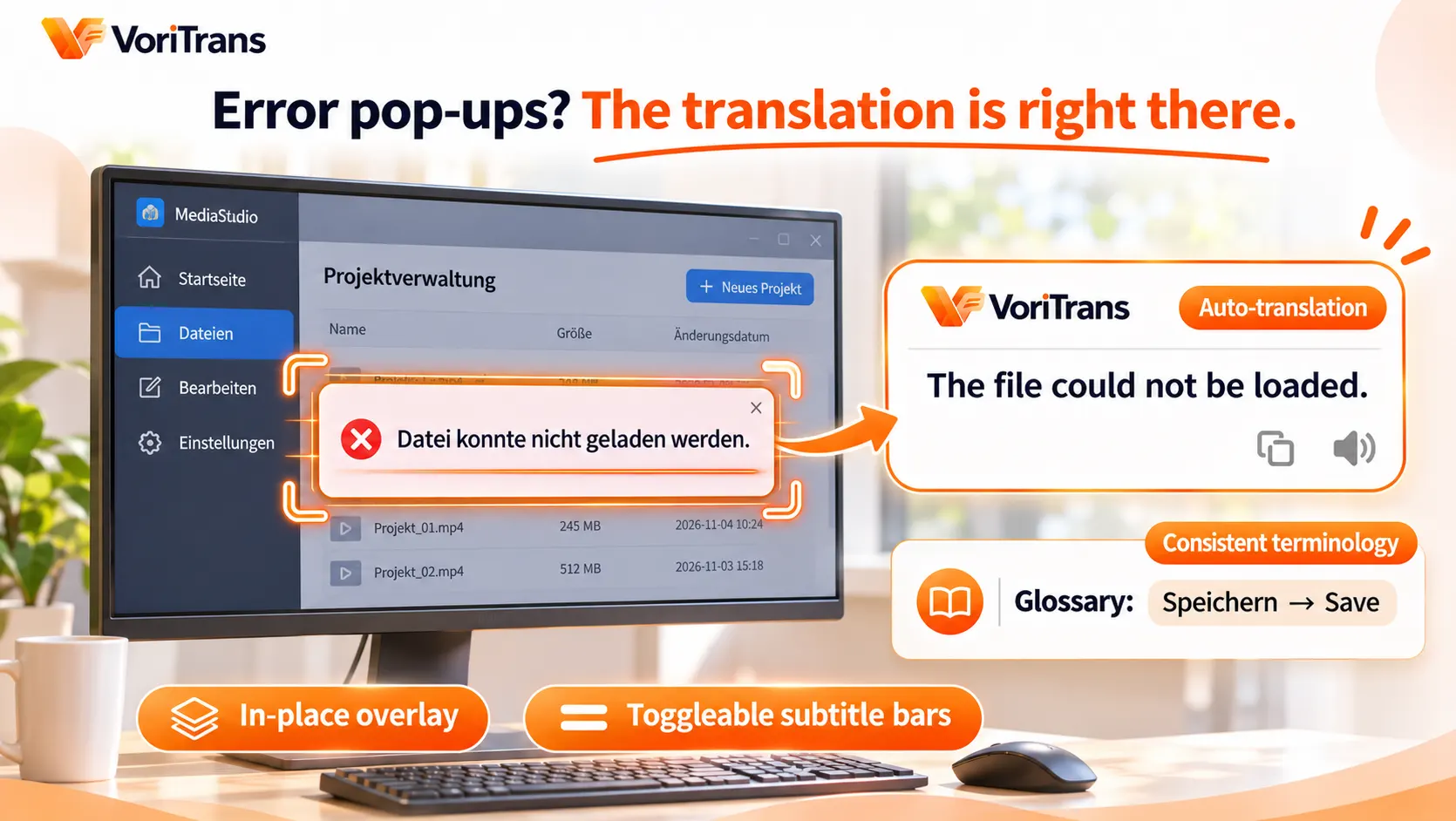
- Errors and pop-ups: System notifications, error dialogs, and log windows pop up dynamically; by the time you've typed a sentence into a translation website, your workflow is already broken.
- Restricted copying: In many apps, interface text can't be selected or copied, or copying yields garbled fragments — the copy-paste route is a dead end from the start.
- Side effects of full-page translation: Tools that translate a web page into your chosen language translate the buttons and menus too, scrambling the layout — sometimes you only want to understand one passage, not have the entire page reflowed.
These gaps are exactly where a screen translator fits: it reads any text displayed on the screen, whether it's a web page or a piece of software.
Four-Step Workflow for On-the-Job Use
Take VoriTrans as an example (a Windows client, available from the official download page). In office scenarios, use it like this:
Step 1: Select the target window. For desktop software, use "Select Window" to pick it — the tool tracks its position automatically, so there's no need to reselect when you switch tabs; for web pages and documents, use "Select Region" to frame the passage you want to read.
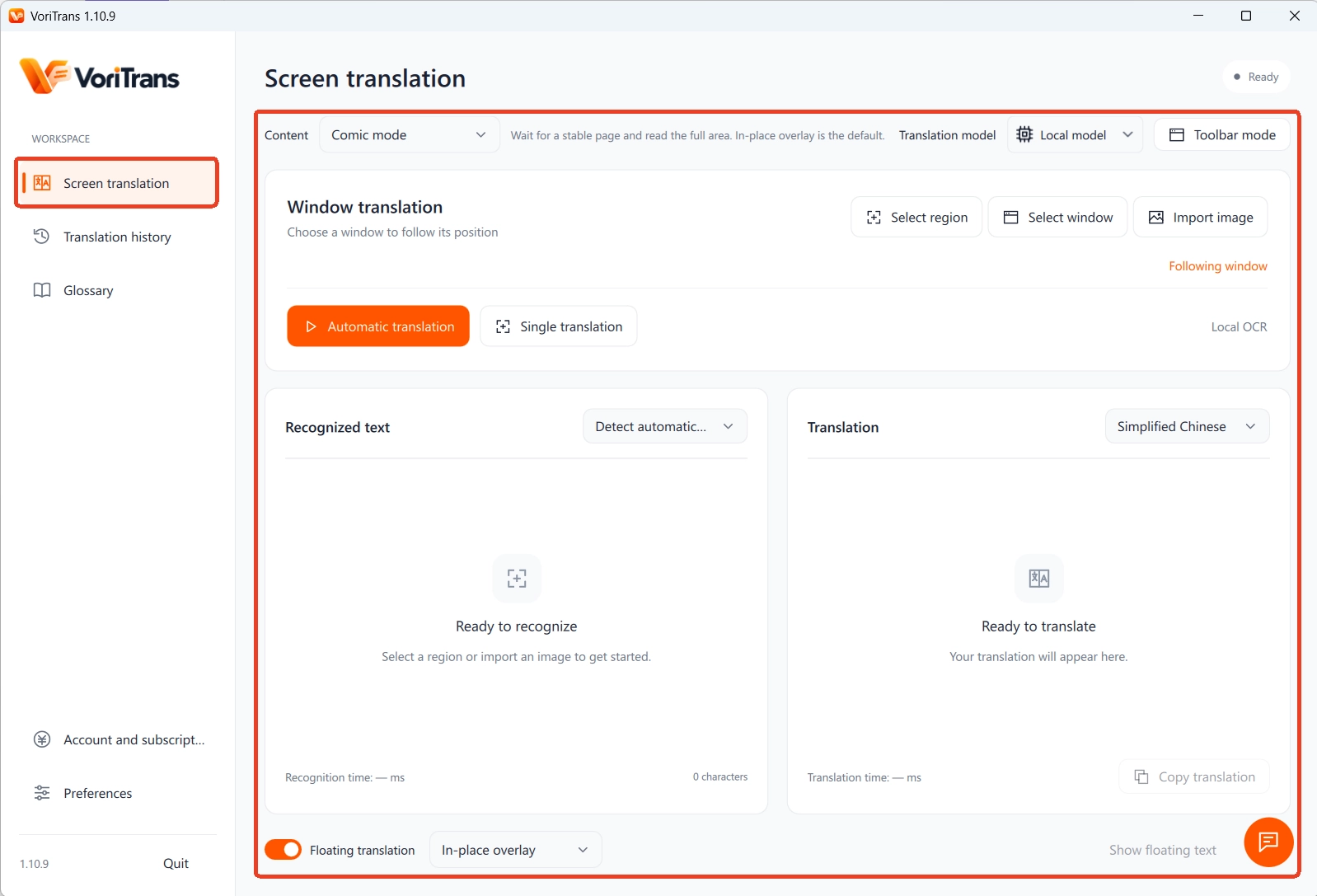
Step 2: Pick a model and languages. Start with the "Local Model" for translation — it consumes no credits; keep the source language on auto-detect and set the target language to whatever you need.
Step 3: Turn on Auto Translate. For dynamic content like error dialogs and status messages, flip on the "Auto Translate" switch in the lower-left corner — as soon as a pop-up appears, the translation is already on top of it, no manual trigger needed.
Step 4: Choose a display mode. "In-Place Overlay" puts the translation right back onto buttons and notification bars, so you understand as you look; if the interface is too dense to cover with text, switch to "Subtitle Bar" mode to show translations in a strip at the bottom.
Four High-Frequency Scenarios — Find Yours
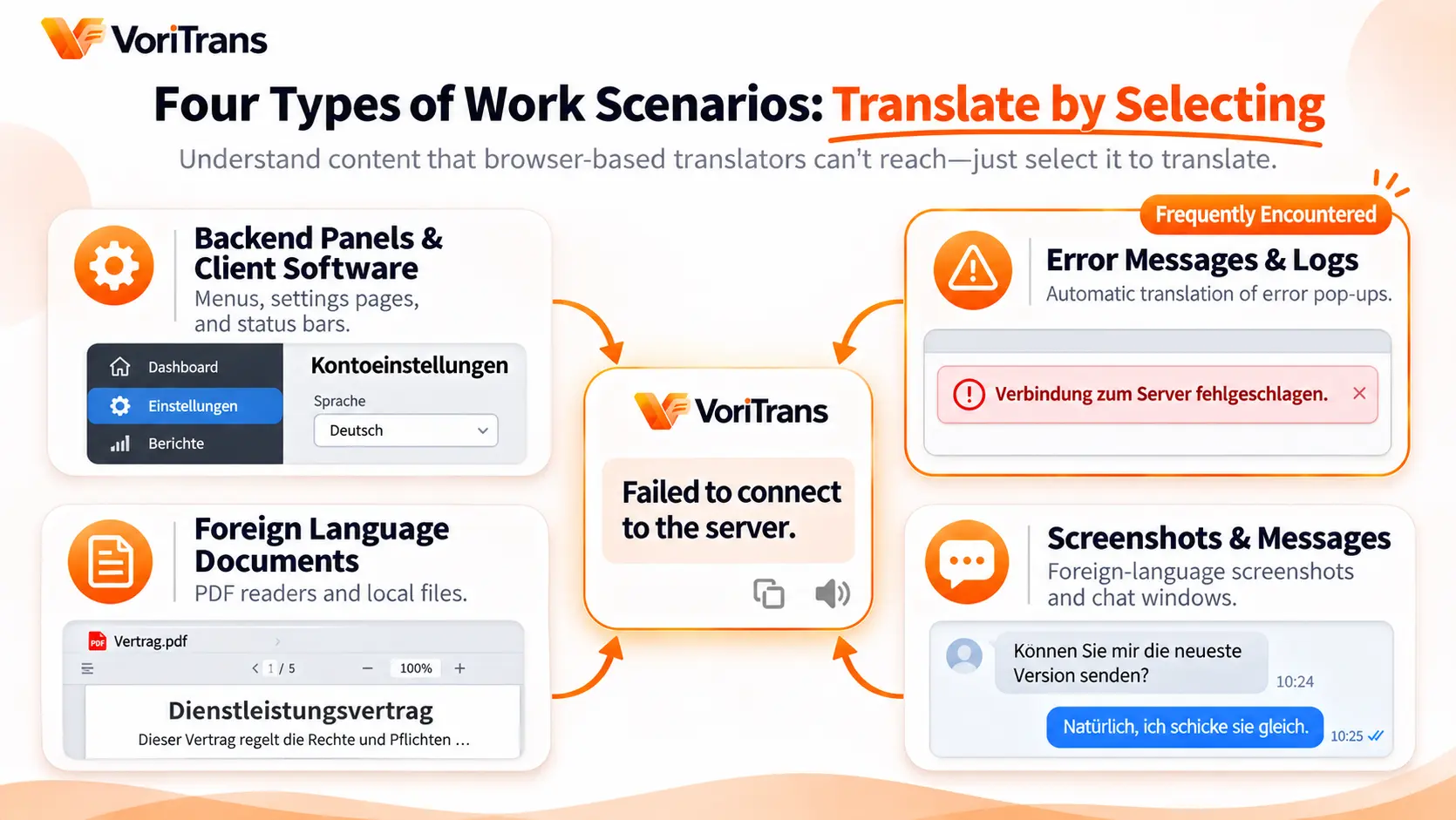
- Admin panels and desktop software: Management consoles and productivity tools built abroad — frame the settings page or menu area and understand each interface element one by one, so you stop operating by guesswork.
- Error messages and logs: Error dialogs get translated automatically; you read the description first, then decide whether to retry, check the docs, or contact support — a completely different debugging pace. When the same error appears a second time, one look at your translation history gives you the previous translation for comparison.
- Foreign-language documents: For text in PDF readers or local document viewers, frame the paragraphs and translate them directly — no more pasting file contents chunk by chunk into an online translation site.
- Screenshots and messages: Foreign-language screenshots from colleagues or clients, or messages in a chat window — frame them and read, skipping the transcribe-then-paste middle steps.
Glossary: The Hidden Value for Work
Entertainment values plot continuity; work values consistent terminology — if the same feature name is translated "Save" one day and "Store" the next, reports and handovers become ambiguous. The "Glossary" locks high-frequency feature words into one fixed translation, and edits take effect automatically from the next translation on; "OCR Correction" permanently fixes interface words that keep being misrecognized. The glossary supports import and export — export a copy and send it to colleagues to import, and the whole team aligns on terminology, something sentence-by-sentence human translation can hardly achieve. Every translated error and interface note stays in the local "Translation History" on your machine, handy for later cross-checking or for citing the original text in support tickets.
Limits and Costs, Stated Upfront
A screen translator reads text already displayed on the screen; selectable text in web pages can of course be translated too, but if you work entirely in the browser and accept full-page translation, the browser's built-in option is genuinely enough — a screen translator's value lies beyond the browser. For intranet systems with sensitive data, prefer the "Local Model" (it consumes no credits); whether it meets your compliance requirements, refer to the official documentation. On cost: guests get 1,000 free credits per month, and 2,000 after signing up — more than enough to verify whether it covers your office needs; membership rules as per the official pricing page. Tomorrow at work, when the first incomprehensible dialog pops up, frame it and try — you'll know right away.
FAQ
Browser translation is free — why install a client?
The two cover different ground. Browser translation only covers web pages; desktop software, error dialogs, PDF readers, and chat screenshots are all outside its scope. Full-page translation also reflows the layout, so it can't serve the need to understand just part of the screen. If your foreign-language content mostly lives in the browser, the built-in option is fine.
Can it translate text in PDFs and images?
Yes. Text displayed in PDF readers and image viewers is within a screen translator's scope — just frame it. For downloaded comics, scans, and other local images, you can batch-process them with "Import Images", with translations filled back into the original layout.
Is screen translation safe for intranet systems?
For the parts where recognition and translation happen locally, no screen capture is uploaded. VoriTrans's local model translation consumes no credits, making it a good first choice for data-sensitive scenarios; refer to the official documentation for specifics on data handling, and when company compliance requirements are involved, confirm before you use it.