AI Screen Translation Accuracy: Why Output Goes Wrong and How to Fix It
The same screen translation tool: yesterday it translated beautifully, today the output is suddenly full of errors; or it works perfectly for a friend but turns into a mess the moment you try it — when this happens, most people's first reaction is "this tool translates inaccurately." That conclusion comes too fast. Wrong output has two completely different sources: the text wasn't read correctly, or it was read correctly but translated poorly. Only by separating the two can you actually talk about accuracy.
First, separate them: recognition failure and translation failure are two different things
Screen translation works in two stages: OCR first turns the text on screen into editable text, then AI translation converts that text into the language you choose. If either stage fails, the output you see will be wrong — but the cause and the fix are completely different.
The way to tell them apart is built right into the client: next to the translation result there is a "Recognized Text" panel showing what the OCR actually read this time. If that panel is already full of errors, it's a recognition problem — adjust your selection area and screen conditions. If the recognized text is correct but the translation is wrong, it's a translation problem — adjust the model and terminology. Make it a habit to take this one look before you act, and your troubleshooting will never go off track.
Six common causes of OCR recognition failure
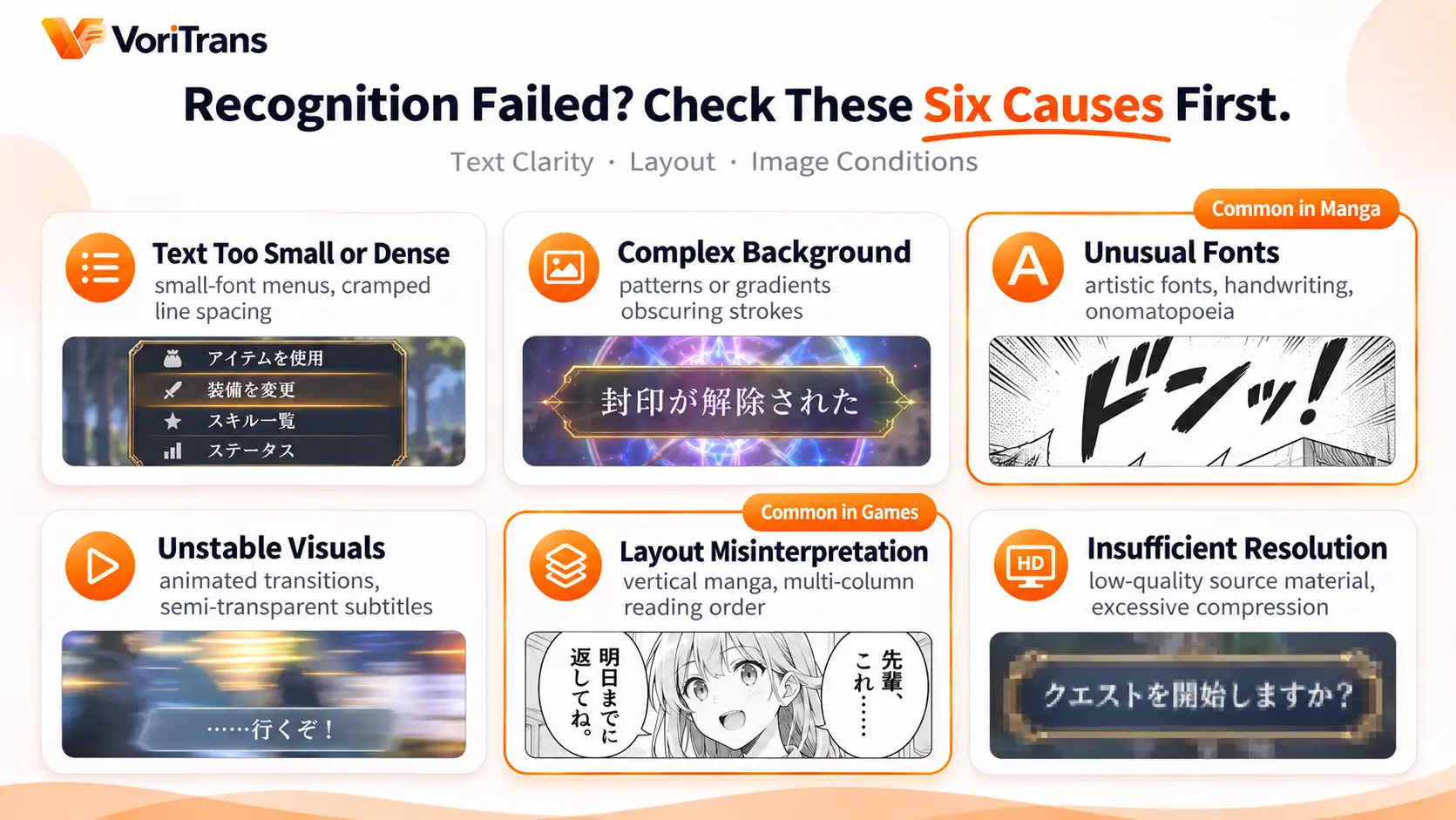
Recognition quality depends on text clarity, layout, and screen conditions — measured against this yardstick, failure scenarios basically fall into the six categories below:
- Text too small or too dense: tiny text in game interfaces, tightly spaced menu lists — characters stick together and OCR can't tell the boundaries.
- Complex background: text sits on patterns, gradients, or lighting effects, and the strokes blend into the background.
- Unusual fonts: stylized lettering, handwriting, warped onomatopoeia — stroke structures far removed from print fonts.
- Unstable screen: the frame is moving at the moment of capture — cutscene animations, subtitles fading in and out — so semi-transparent or incomplete characters get read.
- Wrong layout detection: vertical manga or multi-column layouts, once the reading order is judged incorrectly, come out with sentences completely scrambled.
- Insufficient resolution: low-res video sources, over-compressed screenshots, blur from system scaling — if you can't read the text clearly, neither can the tool.
The matching troubleshooting, in four steps
Once you know the cause, the fix is to address it directly. Taking VoriTrans as an example, troubleshoot in this order:
Step 1: Shrink the selection area. Capture only the small block containing the target text, not the whole screen — the smaller the selection, the fewer the distractions and the more accurate the recognition.
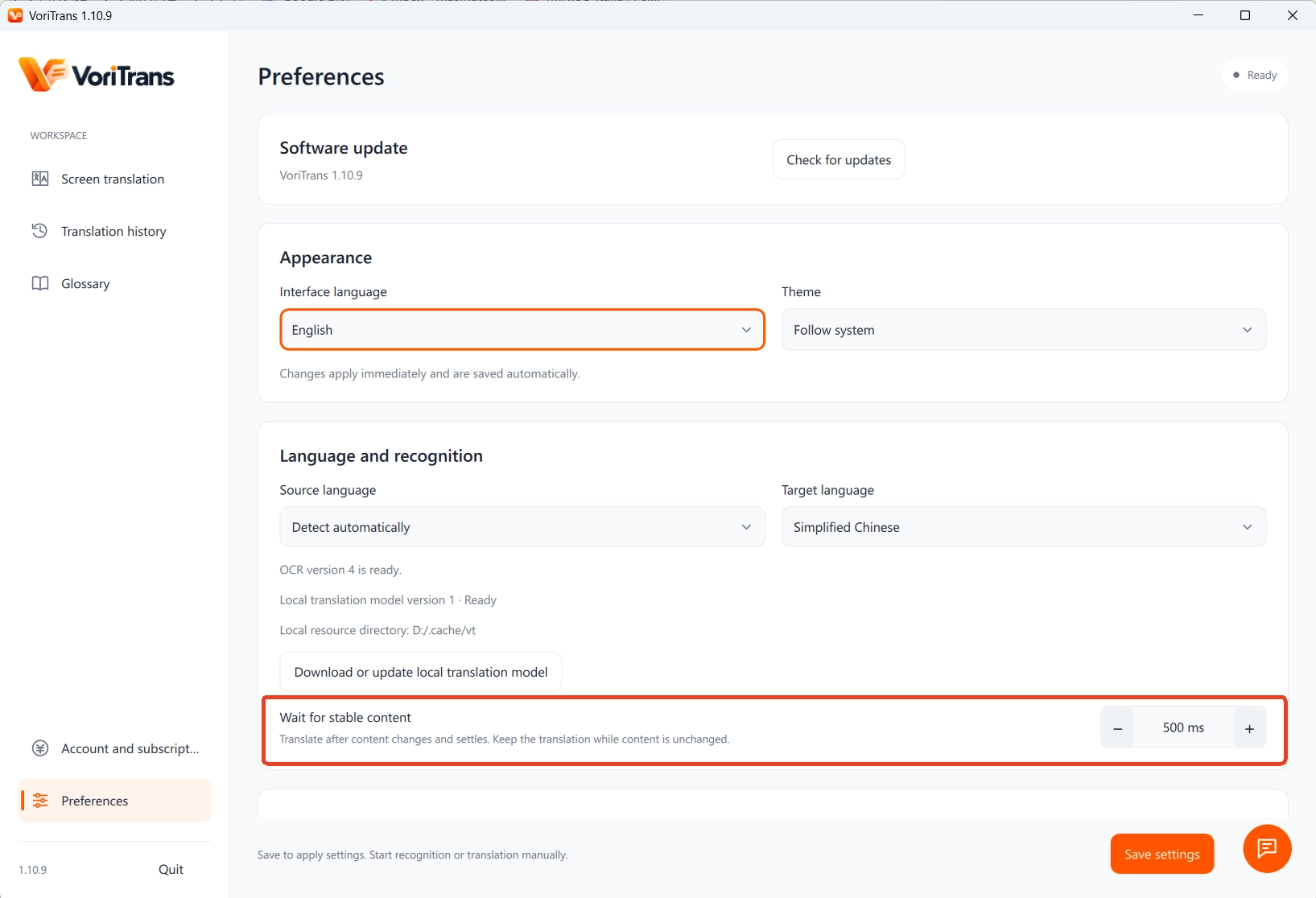
Step 2: Wait for the screen to stabilize before translating. In Preferences, "Screen stabilization delay" can be adjusted in milliseconds; for content with animated subtitles or heavy transition effects, let the tool wait until the frame settles before recognizing.
Step 3: Switch to a different OCR engine. Preferences offer 4 OCR engines to choose from; trying another engine on the same screen can change the result noticeably — no engine leads in every scenario, so stick with whichever one is most reliable for your content.
Step 4: Single retry plus term correction. If an individual block is recognized poorly, use "One-shot translation" to recapture a small area; for fixed terms that keep getting misread (character names, system words), use OCR correction in the "Glossary" to lock the original word to its correct spelling — it takes effect automatically on the next translation.
What to do when translation is off: models, terminology, and the right expectations
If the recognized text is correct and the problem lies in the translation stage, there is still plenty to adjust. Start with the "Local model" for translation — it consumes no credits and its capabilities are limited, but it works well for verification; for important passages that demand strong contextual understanding, switch to a cloud model (Qwen, DeepSeek, GLM) and compare the translation of the same sentence — the difference is usually obvious at a glance. Credit rules for cloud models follow the official pricing page.
Tone and names are handled by two things: the "Game translation prompt" in Preferences lets you customize the translation style so the output matches the tone of the work; the Glossary locks character names and invented setting terms to a single translation, keeping the whole work consistent from start to finish. Set your expectations right, too: the goal of AI translation is to let you follow the story smoothly, not to deliver publication-grade literary translation — occasionally interpreting a sentence with the help of context and visuals is normal usage, not a broken tool. For more background on recognition issues, see our earlier article What Is a Screen Translator.
When to suspect the screen itself
After all the troubleshooting, one class of problems is not the tool's fault: low-res video sources, mosaic-covered frames, encrypted content, exclusive fullscreen mode — the screen itself provides no readable text, and no tool can change that. When fullscreen recognition misbehaves, switch to windowed or borderless mode first and try again — that's the official standard advice for the common case. Conversely, to verify a tool's true quality, test it with clear, stable content: free credits — 1,000 per month for guests, 2,000 after signing up — let you run the content you actually watch for an evening, which beats any review.
Frequently asked questions
How accurate can AI translation get?
There is no single number, and there shouldn't be — accuracy depends on text clarity, layout, and screen conditions, and the same content gives different results when displayed differently. A responsible tool won't promise percentages; what it can do is open up the "Recognized Text" panel so you can verify things yourself: check the recognition first, then the translation, and it's immediately clear which stage the problem is in.
What if the same words keep getting misrecognized?
Use OCR correction in the Glossary: add the misread original word and its correct spelling; you can tick an option to ignore English letter case, and the change takes effect automatically on the next translation — no manual fixing every time. The glossary supports import and export, so you can take it with you when you switch devices.
Will switching to a cloud model translate more accurately?
Context understanding and long-sentence handling are usually better, at the cost of consuming credits. Compare using the same line of dialogue: run it once with the local model, once with a cloud model — whichever difference suits your content is the one to use. Short dialogue on the free local model, important chapters on a cloud model, is a common way to balance cost and quality.