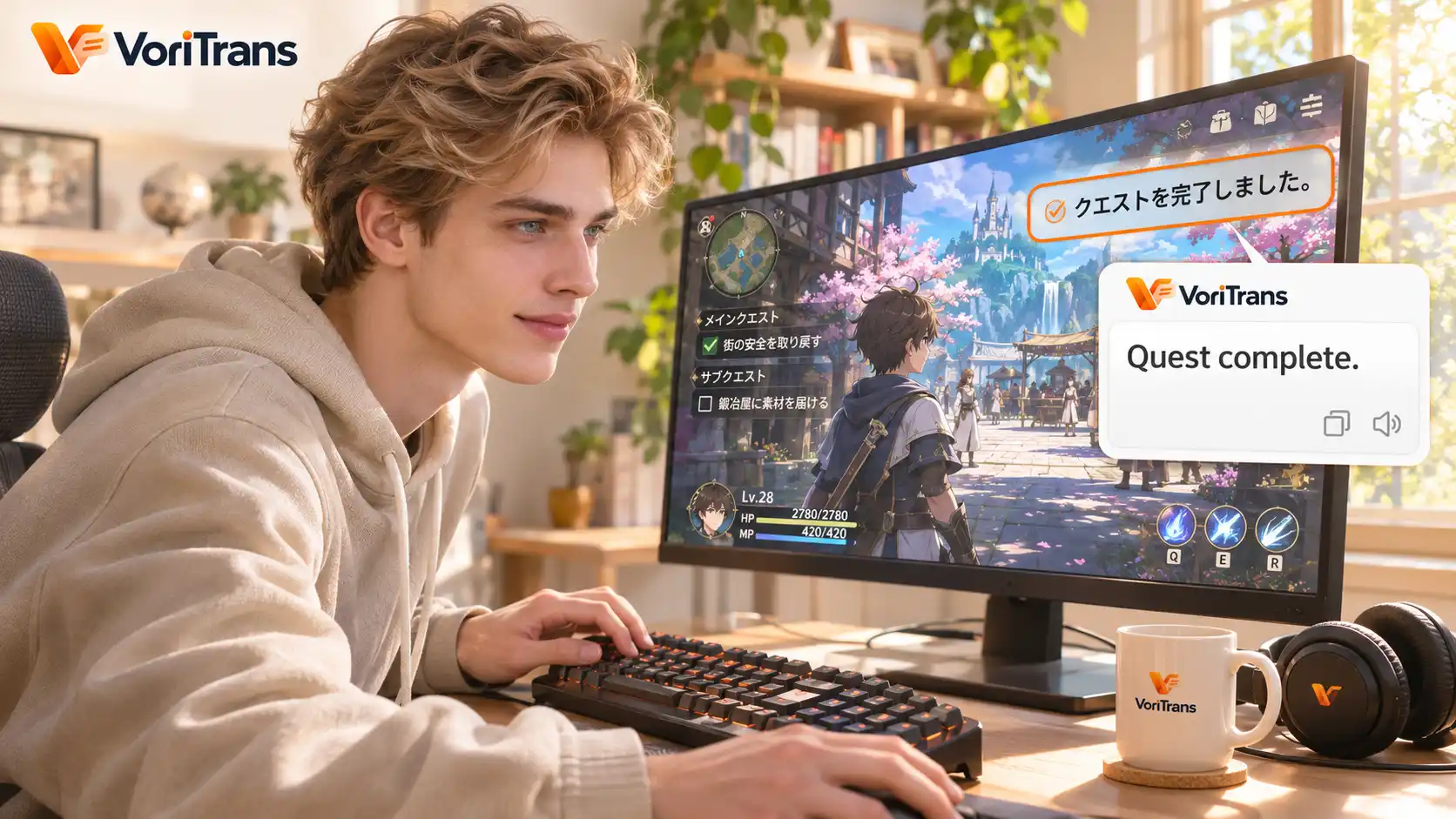
How to Play Galgames Without a Fan Patch: Real-Time Translation of Dialogue, Choices, and UI
Updated
A ten-year-old masterpiece sits in your favorites folder, and the top-voted comment is still "waiting for the translation patch." That is roughly the fate of every old Galgame: the fan team disbanded, the patch was abandoned, or nobody ever picked it up—and the older the game, the smaller the chance a patch ever arrives. But a classic's story does not become unworthy of playing just because no patch exists; the real problem is only that you cannot read the text and dare not pick the options. This article covers a method that requires neither waiting for a patch nor messing with game files, letting dialogue, choices, and the interface turn into the language you need in real time while you play.
Why does Galgame localization never arrive?
Many people assume a fan translation patch is just "translate the text and stuff it back in," but the actual workload is far bigger than imagined: a Galgame's text is buried in the engine's script files, so you first have to write extraction tools to pull out thousands of lines of dialogue, and after translating you still have to handle text overflow, name coloring, option jumps and other details—switch to another game or another engine, and the tools almost have to be rebuilt from scratch. Old engines have no ready-made tools, sales cannot sustain a fan team's enthusiasm, and patches naturally drift indefinitely.
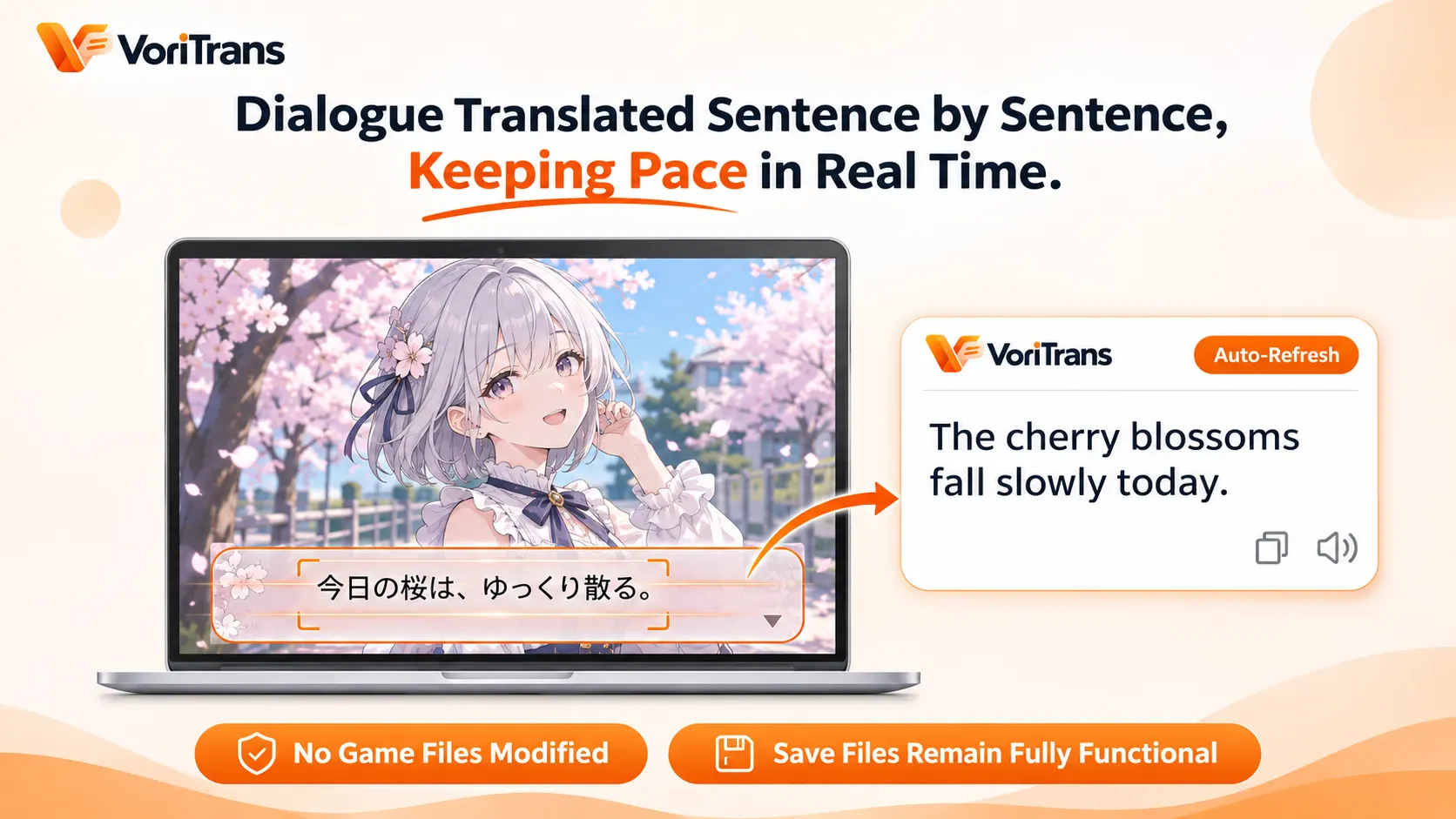
What players cannot wait out is time: for a visual novel with forty or fifty chapters, copy-pasting sentence by sentence into a machine-translation website shreds the reading rhythm into fragments; grinding through the raw text means guessing every tone and every piece of foreshadowing. The pain point is not "is there a translation" but whether the translation can keep up with the sentence-by-sentence reading pace.
Playing without touching game files: frame the text window
A screen translator takes a different path: it does not touch the game at all. Take VoriTrans as an example—install the Windows client and four steps get you running:
Step 1: Pick the content type. On the "Screen Translation" page on the left, switch the "Content Type" at the top to "Game Mode" so recognition handles the peculiarities of game interfaces.
Step 2: Select the game window. Click "Select Window" and pick the game window; the tool tracks its position automatically. If you only want the text box translated, use "Select Region" to frame that strip.
Step 3: Choose the model and languages. Start with the "Local Model" for translation—no credits consumed; keep the source language on auto-detect and set the target language you need.
Step 4: Turn on auto translation. Flip on the "Auto Translate" switch in the lower left and set the "Translation Mode" at the bottom to "In-Place Overlay" so the translation covers the text window directly; click to advance to the next line and the translation refreshes automatically—exactly the rhythm of reading the raw text, except the words are now your native language.
It does not extract scripts, does not replace resources, does not inject into processes—the game stays original and saves keep working. That is the fundamental difference from a fan translation patch: a patch performs surgery on the game, while this hands you a pair of "translation glasses." For older titles with no localization plans, it is a realistic option you can start today at low cost.
Read the choices right and the routes go right
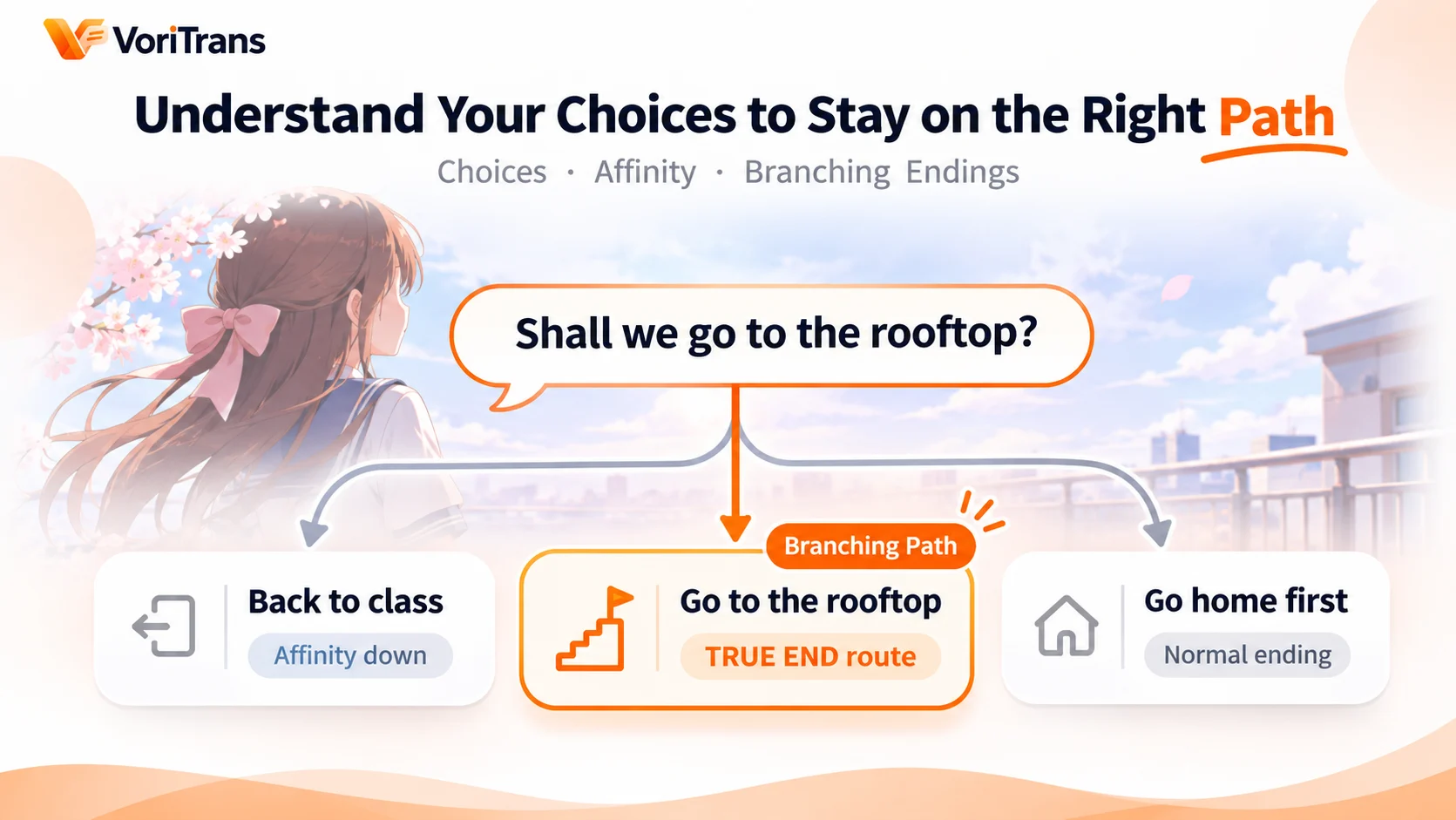
What separates Galgames from other games is that choices carry the story: a wrong pick leads to a bad end, insufficient affection locks routes, and key choices decide whether the true ending is reachable. Choice translation therefore matters even more than dialogue translation.
Two habits are worth building in practice. First, include the area where choices appear in your frame—option buttons and the text window are usually on the same screen, so leave the lower edge where options pop up when framing; the moment they appear, the translation covers the buttons directly and you do not have to race the clock. Second, make use of look-back: most Galgames come with a read-text log, so if you are unsure what a character said after finishing a passage, temporarily frame the log area to translate it. With the tool's auto-follow, the sentence-by-sentence rhythm stays unbroken.
Interface text, glossary, and display
Beyond dialogue and choices, a few details shape the long-term experience:
- Names and proper nouns: the heroine's name and setting-specific terms recur across thousands of lines. Add the original term and its replacement in the "Glossary" on the left, check "Ignore English word case," and it applies automatically from the next translation; the glossary supports import and export, keeping terminology consistent across a long series so foreshadowing pays off without mix-ups.
- Translation history: every translation is recorded automatically on your machine, so translated passages can be reviewed and checked anytime; the history stays local—clearing it or not is your call.
- Game translation prompt: in Preferences you can customize the translation prompt for game text, tuning the tone to the work and keeping name spellings consistent.
- Title menus and vertical text: system words like "Start Game" or "Load Save" can be understood with a quick temporary frame; for vertical text, pick the matching source layout for steadier recognition.
What it covers—and what it cannot do
Dialogue, choices, menus, read logs, system messages—anything displayed on screen can be framed and translated; it supports 105 languages in any combination, with Simplified Chinese, Hong Kong Chinese, and Traditional Chinese (Taiwan) as three separate options. The boundaries are equally clear: it translates text already displayed on the screen—it cannot translate voice without subtitles, and speech transcription or dubbing is out of scope; some fullscreen modes or platforms with unusual anti-cheat mechanisms may affect recognition, and switching to windowed mode usually solves it.
No upfront decision is needed on cost: get the Windows client from the official download page. The local model consumes free credits—1,000 per month for guests, 2,000 after registration, valid within the month—more than enough to run through a short work; if your usage grows, compare the membership plans, with the rules on the official pricing page as the authority. Pick the title you have waited longest for a patch, frame its text window for an evening, and whether it deserves to keep being played will be perfectly clear.
FAQ
Will it corrupt game files the way a fan patch can?
No. A screen translator reads text displayed on the screen; it never touches game files or injects into processes, so the original game and saves are unaffected; close the tool and the screen returns to normal. A fan patch modifies game resources—the two are entirely different mechanisms.
Choices flash by in an instant—is there time to read the translation?
There is. The translation overlays the options' original positions in real time; the moment options pop up, the translation is already on the buttons—no need to screenshot first and translate after. For choices you are unsure about, open the game's built-in read-text log, frame the log area, review the translation, and then decide.
Can it translate old games that only run in fullscreen mode?
Windowed mode is recommended—recognition is steadier and framing easier. Most old Galgames can be forced into windowed mode with tools; a few exclusive fullscreen modes may show recognition glitches, and switching the display mode usually fixes it.