Translate Vertical Manga Without Breaking the Page
Updated
A manga available only in Japanese, with no fan translation in sight — what stings most often isn't "I can't understand it" but "I can't read it": text set vertically, pages turning right to left, and a screenshot pasted into a translation site comes back with the word order scrambled. This guide covers a way to translate without breaking the reading flow — frame the page and let the translations lay themselves back into the bubbles, with dialogue following the panel layout, instead of you bouncing between a sidebar and the artwork.
Vertical Japanese: Why Screenshot Translation Falls Short
The difficulty with vertical Japanese is structural. Horizontal text, once copied, is at least still a complete passage; vertical text on a web page often isn't a continuous string at all — drag a selection and you get kana and kanji mixed with broken fragments, which translation sites process as horizontal paragraphs, producing something unreadable. Reader apps and manga apps simply block copying, shutting down even that route.
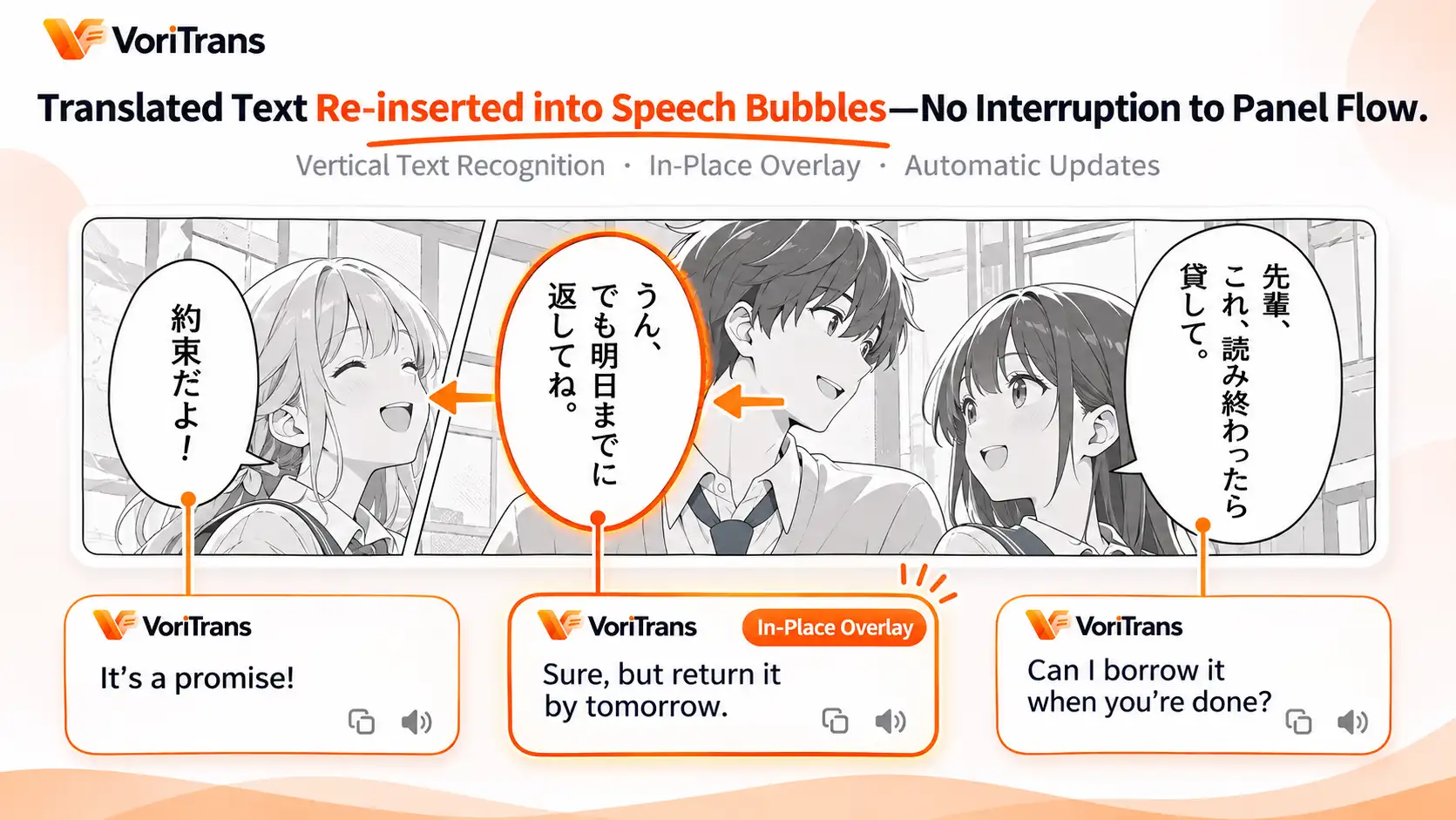
The deeper problem is placement: even if the meaning comes through, the translation has nowhere to go. Manga bubbles have shapes and positions, interlocked with the paneling — with three bubbles in one panel, you can't tell who's speaking. Matching a column of sidebar text against the original art takes ten minutes per page, and any momentum from following a series is long gone. The pain point isn't whether translation exists — it's whether the translation can live in its original position.
Manga Mode in Four Steps
A screen translator takes the "read the screen, restore the layout" approach: take VoriTrans as an example — install the Windows client and you can start translating manga in four steps:
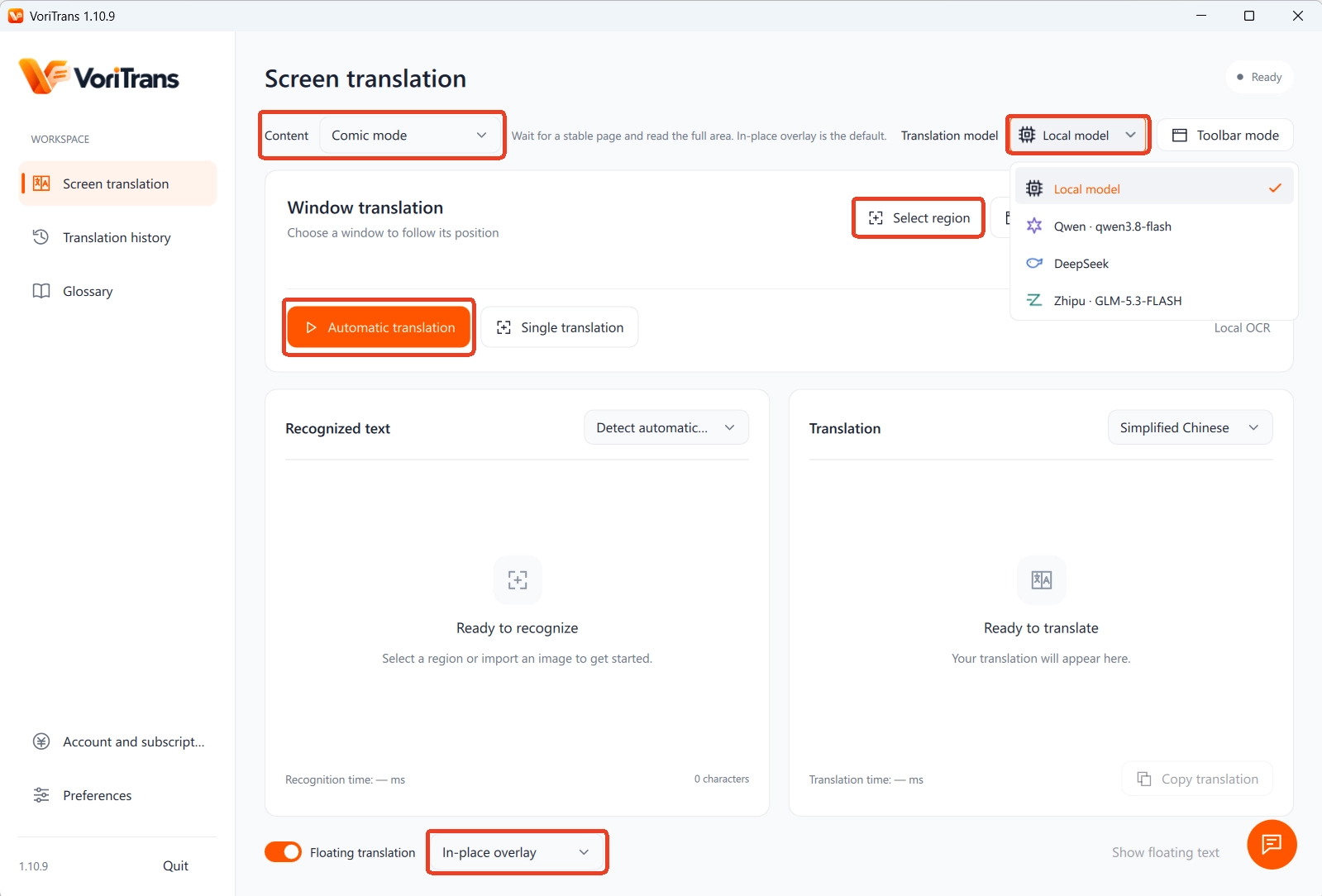
Step 1: Switch to Manga Mode. On the left-side "Screen Translation" page, switch the "Content Type" at the top to "Manga Mode" so recognition handles the text characteristics of manga pages.
Step 2: Frame the page you want to read. For web manga, use "Selection Area" to frame the current page or the panel you're reading; once set, the area stays active — turn to the next page and the same spot keeps translating automatically, no repeated screenshots. If a full page is too dense, frame one panel at a time and set your own pace.
Step 3: Pick the model and languages. Start with the "Local Model" for translation — it doesn't consume credits; keep the source language on auto-detect and choose the target language you need.
Step 4: Turn on auto-translate. Flip on the "Auto Translate" switch at the bottom left, and set the "Translation Mode" at the bottom to "In-Place Overlay" — translations no longer pile up in a sidebar but are laid directly back over each bubble in its original spot.
What It Feels Like When Translations Snap Back Into the Bubbles
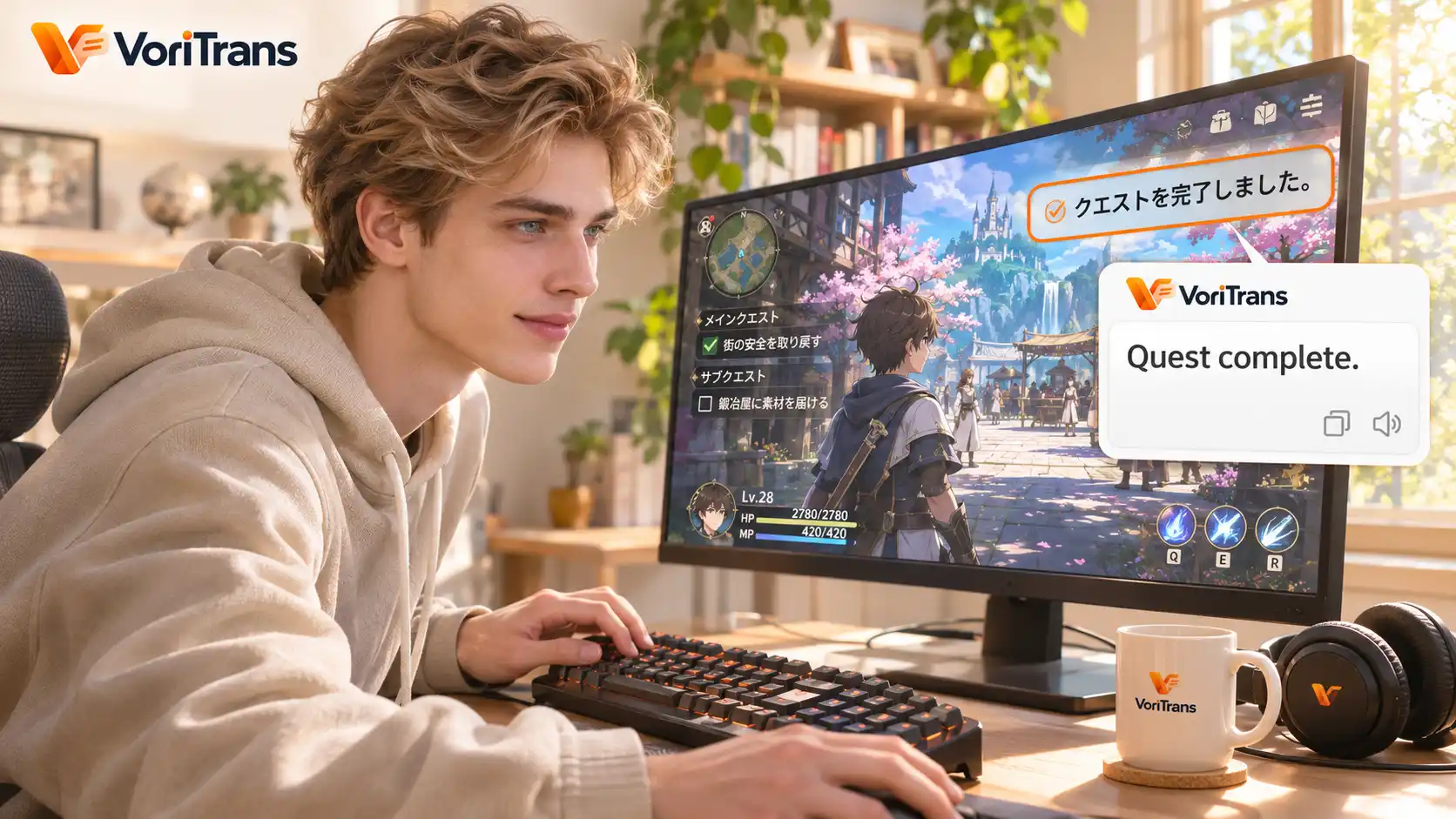
The difference is in the reading flow. The tool first detects the position and shape of every bubble on the page, then re-typesets the translated text to fit each bubble's outline and lays it back in place: three bubbles, three passages — each line of dialogue stays attached to its speaker, and you don't have to cross-check the panel order yourself; just keep reading as the pages turn right to left.
The display is adjustable too: on pages with small, cramped bubbles you can change font size and weight, or add an outline to keep translations legible; if a page is too dense and you'd rather not cover the artwork, switch to "Subtitle Bar" mode, where translations scroll along the bottom of the screen. You don't need to specify the original layout manually — the tool auto-detects vertical and horizontal text for more reliable recognition.
Downloaded Manga Images Can Be Translated in Batches Too
Manga beyond what you're following week to week is covered as well — combine a few features:
- Batch image translation: drag a downloaded chapter's images in through the "Import Images" entry and they're processed one by one, with translations laid back into the bubbles — no screenshot-pasting one at a time. Scans work best when print-crisp; blurry images drag down recognition quality.
- Glossary: add character names, attack names, and setting-specific terms with their translations in the "Glossary" so the whole work stays consistent; "OCR Correction" lets you pin fixes for words that keep getting misrecognized — changes take effect automatically on the next translation.
- Translation history: every translation is automatically logged on your machine, handy for checking foreshadowing or confirming earlier details; history is stored locally, and clearing it is up to you.
What It Covers, and Where to Stay Alert
The coverage is text displayed on screen and printed in images: web serials, reader windows, and downloaded images can all be framed and translated, with 105 languages supported in any combination — Simplified Chinese, Hong Kong Chinese, and Traditional Chinese (Taiwan) are three separate options. It processes text already printed on the page; artwork without text is out of scope. Know the boundaries too: printed dialogue and narration are recognized most reliably, while onomatopoeia and hand-lettered artistic fonts are edge cases — if an occasional panel comes out wrong, framing a smaller area with "One-Shot Translation" usually fixes it.
Cost requires no upfront decision: get the Windows client from the official download page. The local model runs on free credits — 1,000 per month for guests, 2,000 after signing up, valid within the month — plenty to get through a chapter; if your usage grows, compare membership plans, with the rules as stated on the official pricing page. Pick a raw manga you've been saving, frame the first page, and try it — the difference in reading flow shows immediately.
FAQ
Will translations ruin the original paneling?
No. In-place overlay only replaces the text area inside each bubble; the rest of the artwork is untouched, and what you see after closing the tool is the original page. Font size, weight, and outline are all adjustable so translations fit the bubble shapes as closely as possible. If you'd rather not cover the artwork, switch to "Subtitle Bar" mode to display translations.
Can already-downloaded manga images be translated?
Yes. Drag images in in bulk through the "Import Images" entry and they're translated one by one automatically, with translations laid back into the bubbles — a whole chapter can be processed at once. For web serials, use "Selection Area" for real-time translation; the two routes cover the main ways of reading manga.
Can onomatopoeia and hand-lettered text be recognized?
Onomatopoeia often uses handwritten and stylized fonts, making it an edge case for recognition, with accuracy depending on the typeface. Printed text like dialogue and narration is recognized most stably. For an important panel, frame a smaller area and retry with "One-Shot Translation," or interpret it with the context and artwork.