
How to Read Foreign Messages in Chat Windows — No API Integration Needed
Your squadmates are calling out tactics in another language, colleagues abroad are posting plans in foreign software, and livestream viewers are scrolling walls of chat you can't read — all trapped in their own chat windows. Most chat apps are closed clients: there's no translation plugin to install, no interface to hook into, and full-page browser translation never reaches them. This guide walks a path that changes no app at all: let the translator read the screen directly, keep chatting as usual, and translations follow every message.
Why Chat Window Translation Is Harder Than Web Pages
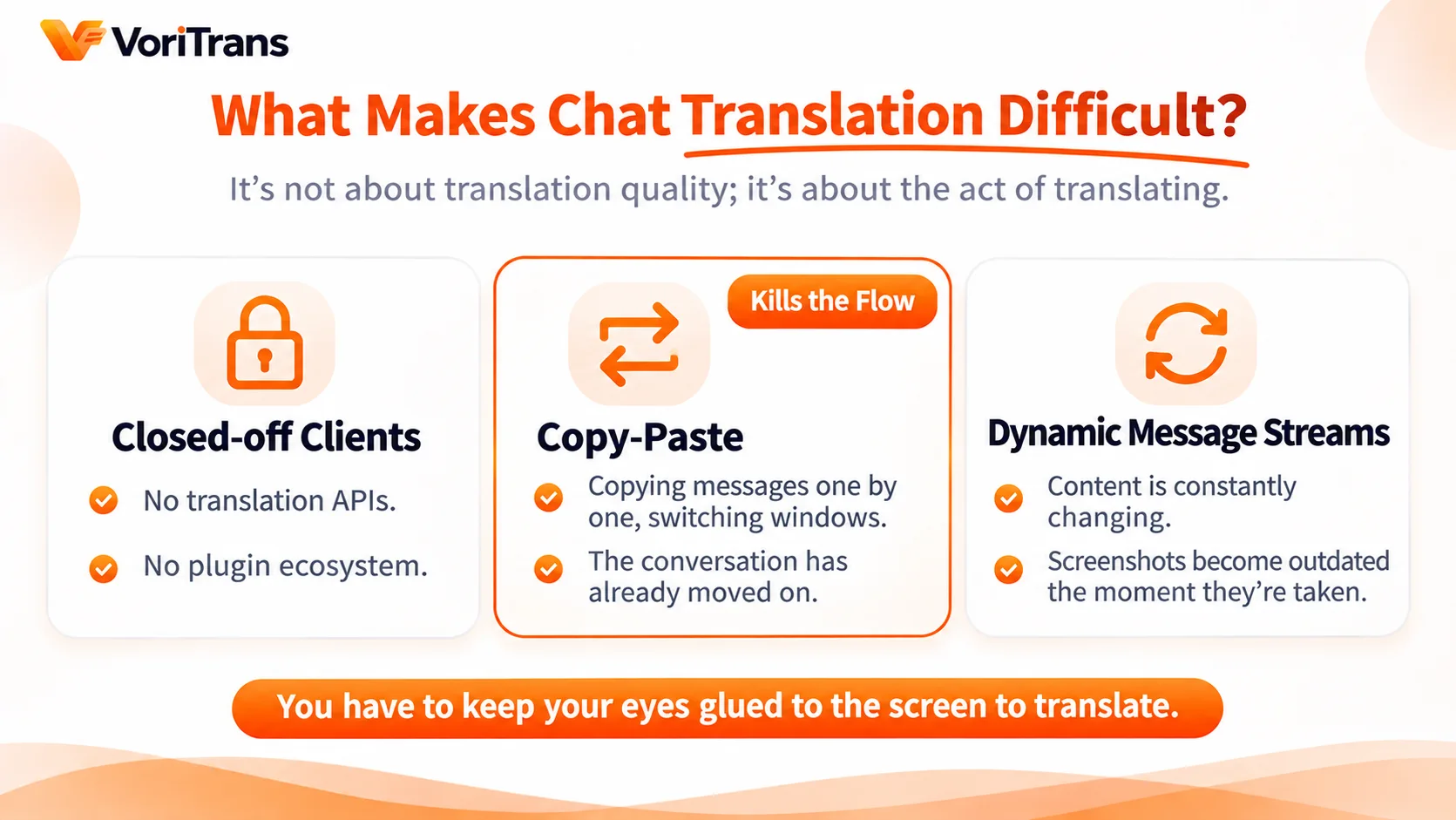
Foreign text on a web page is mostly handled by your browser's built-in translation. The trouble with chat windows is that they don't live in the browser. Three barriers stack up:
- Closed clients offer no opening: the text panels of desktop chat apps, in-game chat and voice software are all home-grown interfaces — no translation interface, no plugin system to attach to;
- Copy-paste wrecks the rhythm of chat: messages pop up one after another. Copy each line, switch windows, paste, wait for results, switch back — by then the topic has moved on;
- The message stream is dynamic: chat content changes constantly. Static screenshot translation can't keep up — every screenshot is stale the moment it's taken.
The sticking point isn't translation quality; it's that the "translation action" can't fit inside the act of chatting. To keep up, the translator has to watch the screen itself.
The Idea: Instead of Wiring Translation into the App, Let It Read the Screen
A screen translator sidesteps the interface problem entirely: it never asks whether the app exposes an interface — it simply reads the text shown on screen, puts the translation back where the original text sits, and updates automatically whenever the text changes. The app runs exactly as before, not one line of code changed. That's what "no API" really means: the entry point for translation isn't inside the app — it's on the screen.
For a chat window, that means the moment a new message pops up, its translation is already sitting in place. Scroll back through history, and recognition follows wherever you scroll — no need to re-screenshot earlier messages.
Four Steps to Start Chatting
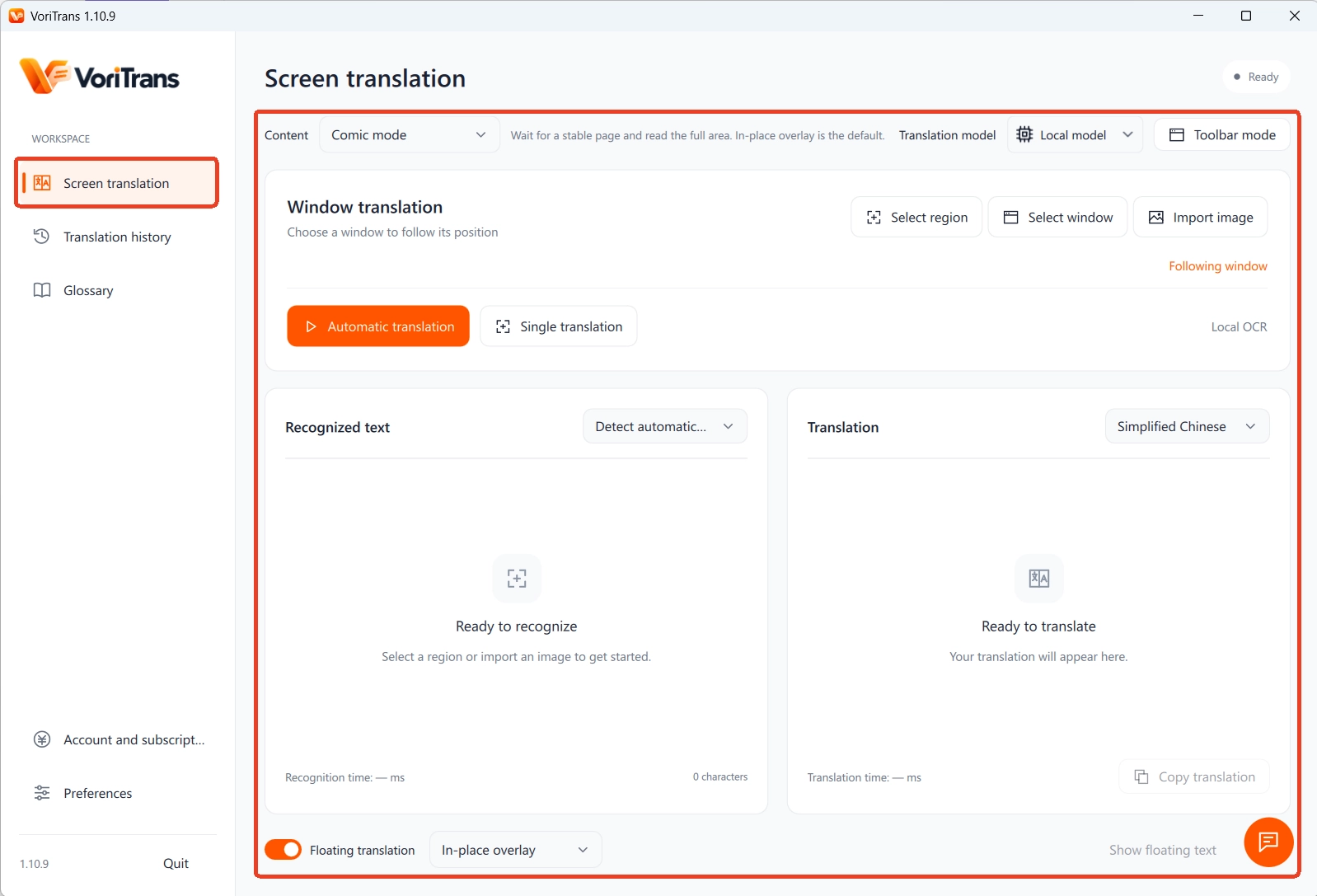
Using VoriTrans as an example, four steps after installing the client get your chat window covered:
Step 1: Pick the content type. Chat text updates frequently and counts as interface text, so "Game mode" is the right choice under "Content type".
Step 2: Frame the chat window. Use "Select window" to pick the chat window directly (its position is tracked automatically), or "Select region" to frame the chat bar — in fast-moving group chats, framing just the message area keeps recognition focused.
Step 3: Choose the model and target language. Start with the "Local model" — it consumes no credits. The source language is detected automatically, and you can pick any of the 105 target languages you use most.
Step 4: Turn on auto-translate. Flip on the "Auto translate" switch at the bottom left and set "Translation mode" at the bottom to "Overlay in place" — new messages are translated the instant they appear. You can also switch to "Subtitle bar", which gathers translations into a single subtitle line without covering any chat history.
Four High-Frequency Scenarios, Each with Its Own Framing
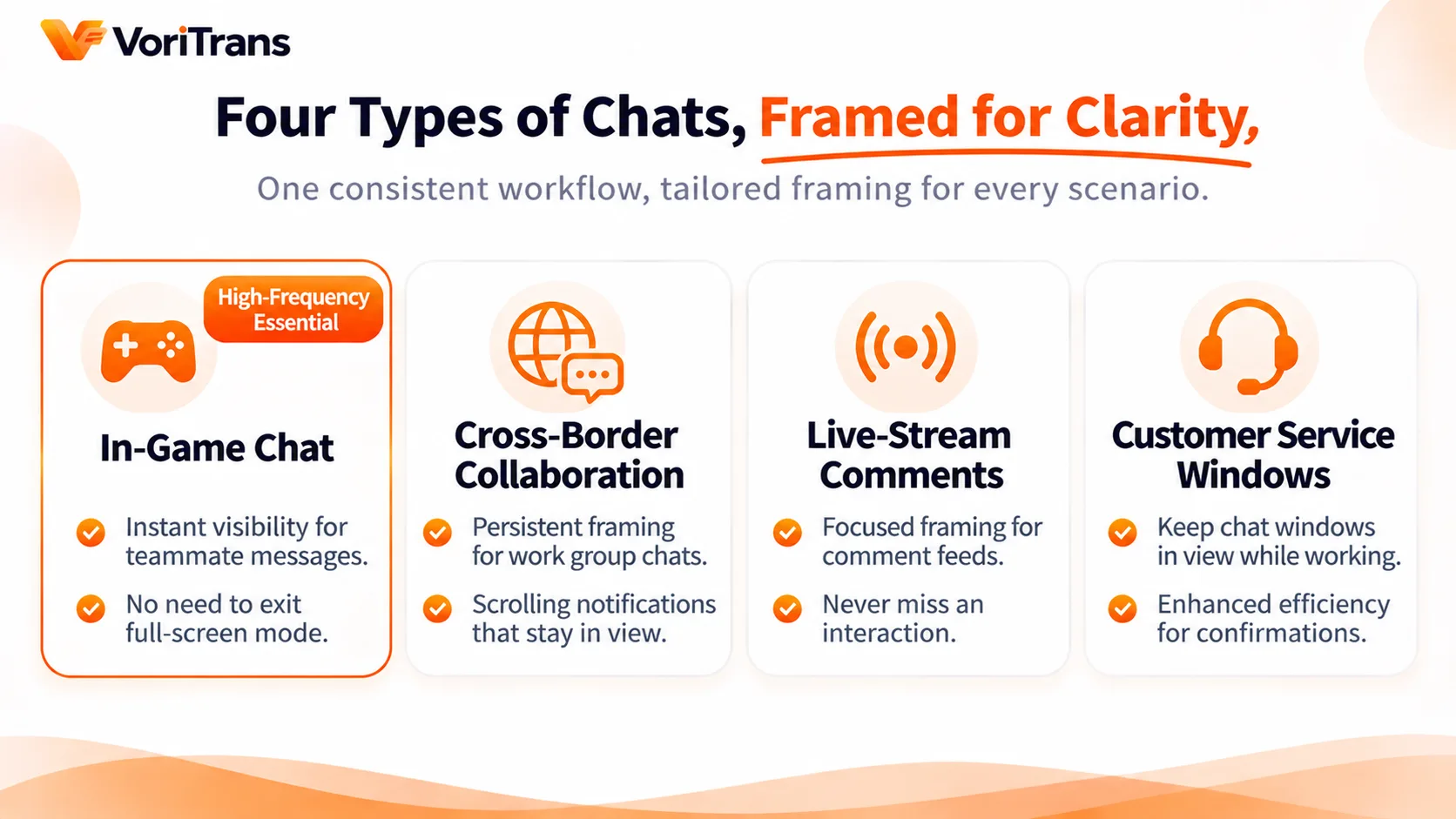
The same workflow plays out differently across chat scenarios:
- In-game chat: teammates' callouts vanish in seconds. Frame the chat bar and turn on auto-translate — every callout makes sense as it pops up, no need to leave full screen to look things up;
- Cross-border collaboration: in a foreign-language work group, frame the message area and leave it running; notices and plans scroll by, and translations scroll right along with them;
- Livestream danmaku and viewer chat: a streamer reading foreign viewers' interactions keeps the chat area framed and translating, never missing a beat;
- Temporary customer-service windows: frame the conversation area of a foreign-language support chat and translate while you talk — back-and-forth confirmation feels completely different.
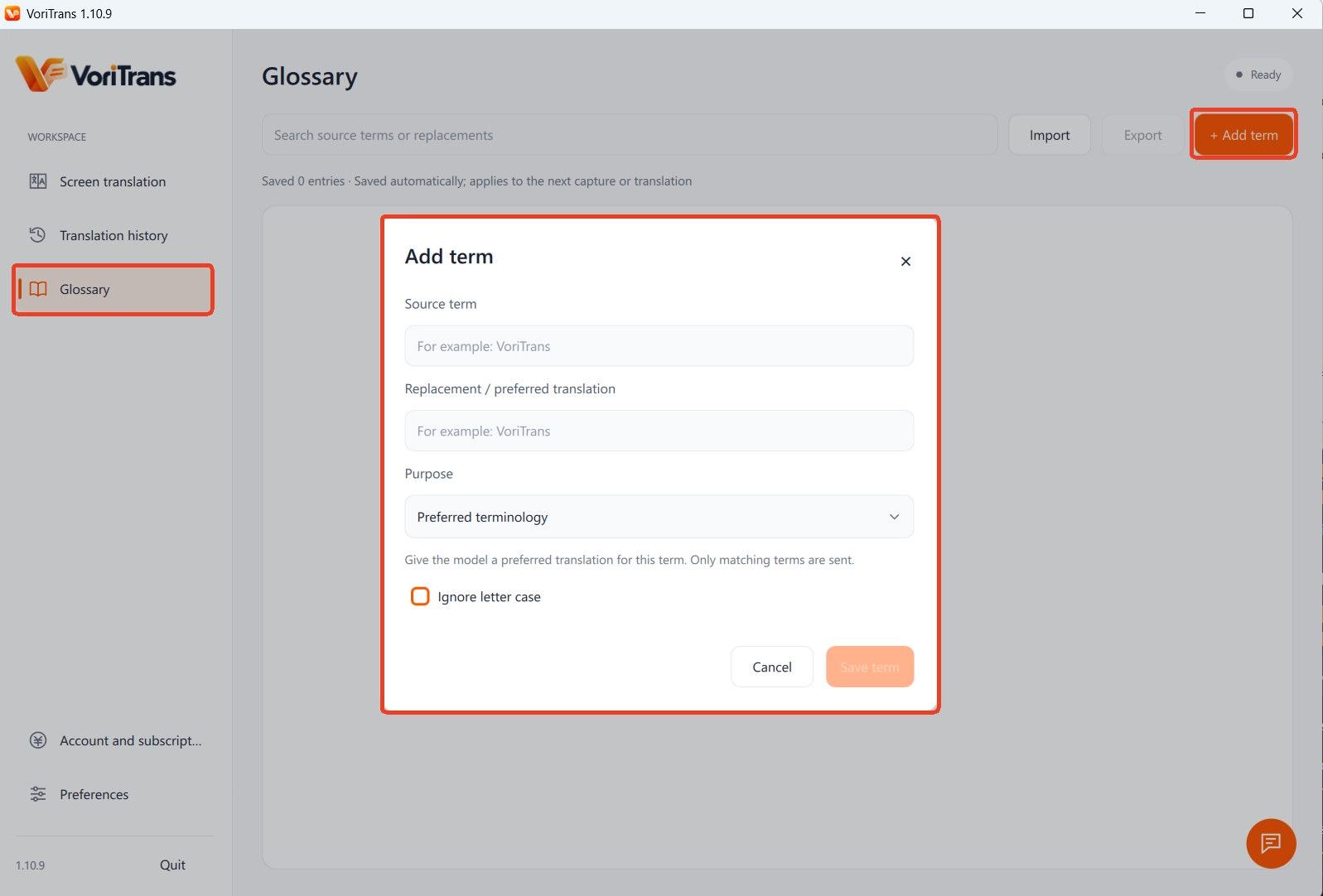
For recurring jargon, abbreviations, IDs and channel names in long conversations, add the original term and your preferred translation in the "Glossary"; edits save in real time and take effect on the next recognition or translation. For usernames that keep getting misread, use "OCR correction" to lock the original text to the correct spelling so the same mistake doesn't repeat in every message. Click "Toolbar mode" at the top right to collapse the main interface into a floating sliver you can control while chatting, without getting in the way.
Limits and Privacy, Stated Up Front
Two things deserve to be clear before you start.
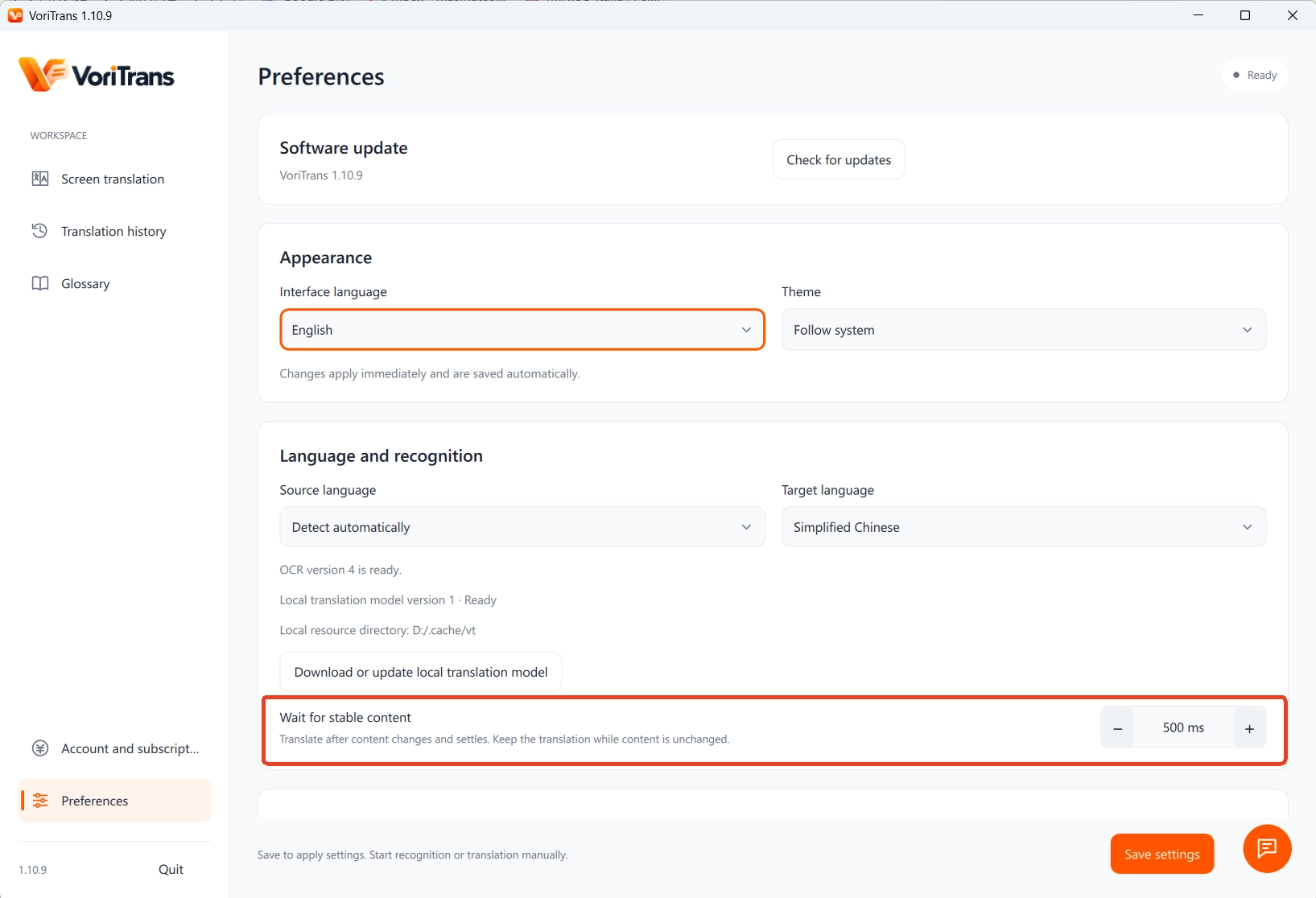
First, it reads text only: voice calls and voice messages have no text on screen, so they can't be translated — that's a different kind of need. When chat history scrolls up too fast, translation refreshes follow the "wait for stable frame" rhythm, adjustable by millisecond in Preferences.
Second, privacy: if your chats are sensitive, prefer the local translation model — recognition and translation both happen on your machine. For where data goes, refer to the official documentation; cloud models consume credits by usage, with rules set out on the official pricing page. Get the installer from the official download page — guests get 1,000 credits to use within the month, no login required.
Take the foreign-language chat window you live in most and give it five minutes: new messages translated as they pop up, translations shown in place without covering history, jargon translated consistently — and the rhythm feels almost like chatting in your native language.
FAQ
Can apps like WeChat and Discord be translated this way too?
As long as the foreign text is displayed on screen, screen translation can recognize it — it doesn't rely on the app offering a translation feature, and it doesn't rewrite the app. How well a particular window is recognized depends on fonts, font sizes and interface styling; the most direct way to find out is to frame your own window once.
Will this translation see my chat content?
The tool recognizes the text currently displayed on your screen. If privacy is a concern, choose the local translation model — recognition and translation both complete on your machine; for how each model handles data, refer to the official documentation, and for sensitive conversations it's best to avoid cloud models.
Can voice messages and voice calls be translated?
No. Screen translation reads text shown on screen; voice has no on-screen text to recognize. When someone sends a voice message, check whether it comes with a text transcript first, or ask them to send a text version.